How to Make a GIF From a Video
By Shafiullah Tareen, creator of ZipGIF · Published
A GIF is a silent loop of still frames, so turning a video into one always means the same thing: pick a short moment, take its frames, and store them with timing. There are two honest ways to do it. A direct converter takes the video file and hands back a GIF in one step. The frames route splits the job in two: extract the frames, then build the GIF from those images — which is also how you can use ZipGIF, even though ZipGIF itself does not accept video files.
The short answer
If you want the fastest path, use a direct video-to-GIF converter: upload the video, choose the start and end of the moment, set the size and frame rate, and download the GIF. EZGIF and Giphy both do this, and their current pages are linked in the sources below.
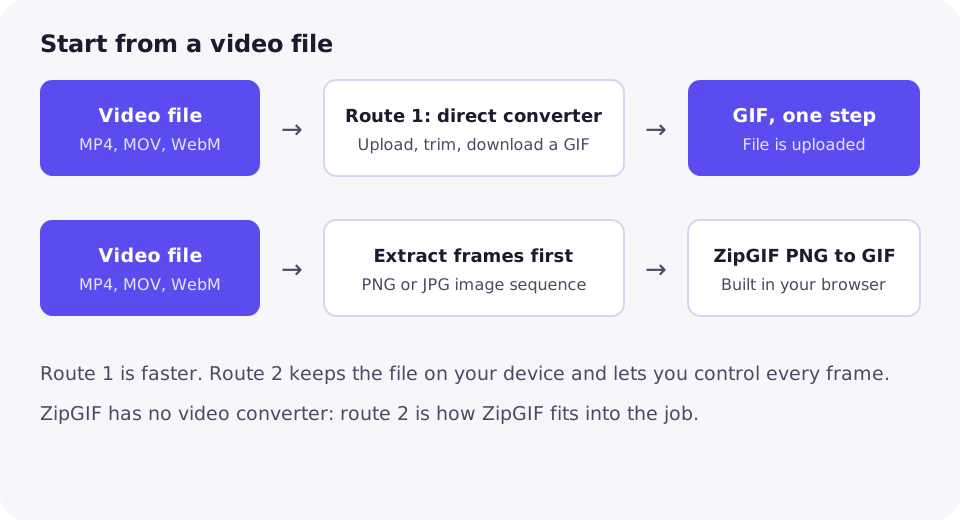
If you want privacy, or you want to control every frame before the GIF is built, use the frames route: extract the moment as a numbered sequence of PNG or JPG images, then convert those images to a GIF with ZipGIF in your browser, where nothing is uploaded. The rest of this guide walks through both routes, then covers how to pick the clip and keep the file small.
The honest starting point: ZipGIF has no video converter
This needs saying plainly, because many sites imply otherwise: ZipGIF cannot convert a video file. There is no video-to-GIF tool on the site, and dropping an MP4, MOV, or WebM file onto a ZipGIF tool will not work. The GIF tools accept GIF files, and the image-to-GIF converter accepts still images only — PNG, JPG, and WebP. A video file is neither, so it is rejected before anything happens.
That is a limitation, not a trick, and it shapes the advice below. If a one-step conversion is what you need, use a direct converter. If you are happy to extract frames first, ZipGIF's image-to-GIF converter finishes the job entirely in your browser, with no upload, no account, and no watermark. Both routes end with a real GIF; they differ in privacy, control, and effort.
Route 1: a direct video-to-GIF converter
A direct converter is the right choice when you want a GIF quickly and the footage is not private. You upload the video, trim it to the moment, and download the result. Two well-known free options, with facts verified from their own pages on October 26, 2026:
EZGIF's video-to-GIF converter
EZGIF accepts a wide range of video formats — MP4, WebM, AVI, MPEG, MKV, FLV, OGG, MOV, M4V, WMV, ASF, and 3GP among others — with a maximum file size of 200 MB, and it says uploaded files are automatically deleted one hour after upload (EZGIF: MP4 video to GIF converter). After upload you set the start and end times of the part you want; if you select nothing, it makes a GIF from the first five seconds of the clip. You can also set the loop count, where 0 means looping forever.
One limit is worth knowing before you start: the longest section you can convert depends on the frame rate you choose. EZGIF states a maximum of 60 seconds at 5 frames per second, dropping to 30 seconds at 10 frames per second, and so on. In practice, most GIFs are far shorter than that, so the limit rarely bites — but a long clip at a high frame rate will be refused, and the fix is a shorter section or a lower frame rate.
- Open EZGIF's video-to-GIF converter and upload the video file, or paste a video URL.
- Set the start and end times to the exact moment you want.
- Choose the size and frame rate, and the loop count if you want anything other than looping forever.
- Convert, preview the result, and download it. If it is too large, use EZGIF's crop, resize, or optimization tools on the finished GIF — or ZipGIF's compressor, below.
Giphy's GIF maker
Giphy's GIF maker takes a different approach: it is built around creating and sharing. Its GIF option accepts JPG, PNG, GIF, MP4, MOV, and WebM files, and it also accepts media URLs, including YouTube and Vimeo links, and it lets you decorate the result with captions, filters, and stickers (Giphy: GIF Maker). That makes it a good pick when you want text on the GIF or you plan to share it through Giphy anyway.
The trade-off is that your file goes to Giphy's service and the workflow is built around publishing. For a quick personal GIF that is fine; for private footage, prefer the frames route below, where the file never leaves your device.
Route 2: extract frames, then build the GIF with ZipGIF
The frames route has one extra step, and it buys you two things: privacy and control. Because ZipGIF's converter works on still images, you decide exactly which frames go in, in what order, and at what timing, before anything is encoded.
Step 1: extract the frames
First, trim the video to the moment you want in any video editor, then export that moment as an image sequence: one still image per frame. Most video editors offer an image-sequence or stills export; check yours for that option before reaching for anything else.
If you are comfortable with a command line, the free tool FFmpeg does the same job in one command. This example takes a clip and saves one PNG per frame at 10 frames per second:
ffmpeg -i clip.mp4 -vf fps=10 frame%03d.pngThe fps=10 part sets how many frames are taken each second, and frame%03d.png names them frame001, frame002, and so on. The zero-padding matters: without it, frame-10 sorts before frame-2 and the animation scrambles. If the moment is 4 seconds long at 10 frames per second, you get 40 images — a sensible number to work with.
Step 2: build the GIF with ZipGIF's PNG to GIF converter
- Open convert PNG to GIF and drop the extracted frames onto it. PNG, JPG, and WebP are all accepted.
- Drag the thumbnails into playback order. The first image also sets the canvas size for the frames that follow, so put your largest or most important image first if the frames differ in size — ideally, make them all the same size before you start.
- Set the frame delay in milliseconds. The default is 100 ms per frame, which plays at 10 frames per second — matching the extraction rate above, so a 40-frame sequence loops for 4 seconds. To hold one picture longer, add a copy of that image again in the sequence — the converter applies one delay to every frame, so a repeated image is how you create a pause.
- Choose the loop: forever, once, or a custom repeat count. Then preview the animation and download the GIF. Nothing was uploaded at any point.
Two behaviours are worth knowing before you start. First, GIF transparency is on or off for each pixel: the converter keeps pixels above 50% alpha opaque and makes pixels at or below 50% fully transparent, because GIF has no partial transparency. Second, a GIF frame holds at most 256 colours, so photographs and gradients from video will band slightly — that is the format, not a fault in the conversion. If the finished GIF is too large for its destination, reduce GIF file size with the compressor rather than re-extracting at lower quality by guesswork.
Choosing the clip
The clip matters more than the tool. A GIF loops, so the best source moments are short, self-contained, and easy to read at a glance: a reaction, one step of a process, a before-and-after. A 30-second scene with dialogue will not survive as a GIF — it becomes a huge file that nobody watches to the end, and the dialogue is lost anyway, because GIFs carry no sound.
- Cut to one moment. Two to six seconds is a good range for most purposes; longer only if the action genuinely needs it.
- Watch the loop point. A GIF repeats, so check where the end meets the start: a hard cut back to the beginning reads as a jump. If the action returns naturally to its starting position, the loop feels seamless.
- Make sure it works without sound. If the joke or the instruction depends on audio, keep it as a video clip instead.
- Use video you own or have permission to use. This matters most with other people's clips, and a converter accepting a link does not grant you rights to the footage.
Keeping the file small
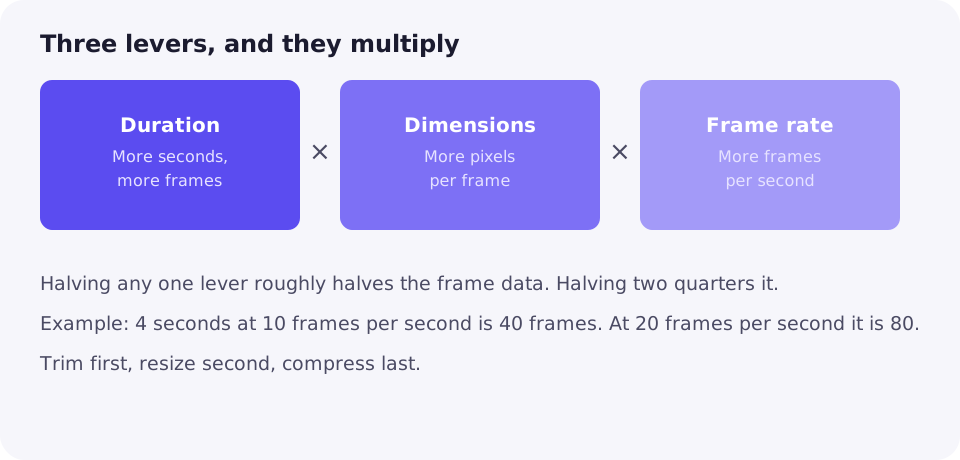
A GIF from video can easily balloon past what a chat app or a web page accepts, because every frame is stored in the file. Three levers control the size, and they multiply: duration, dimensions, and frame rate. Halving any one of them roughly halves the frame data; halving two quarters it. That is why the advice above keeps coming back to short clips, modest dimensions, and 10 frames per second.
When a finished GIF is still too large, work through the fixes in order: trim the least important frames, resize to smaller dimensions, and only then compress. How frame delays relate to playback speed is explained in how many FPS GIFs are, and the full set of shrinking methods is covered in how to make a GIF smaller. If the animation plays too fast or too slowly after conversion, slowing a GIF down explains which adjustment actually changes the speed and which ones only add or remove frames.
Which route should you pick?
| Question | Direct converter (EZGIF, Giphy) | Frames route (ZipGIF PNG to GIF) |
|---|---|---|
| Steps | One: upload, trim, download | Two: extract frames, then build |
| Privacy | File is uploaded to the service | Nothing leaves your device |
| Frame control | Trim points and frame rate only | Every frame chosen, ordered, and timed by you |
| Text and stickers | Yes, in Giphy's maker | No — add those before extracting, or after with an editor |
| Best for | A quick GIF from non-private footage | Private footage, or a GIF you want frame-perfect |
Troubleshooting
ZipGIF rejected my video file
That is expected: ZipGIF's tools accept GIF files or still images, not video. Extract the frames first, or use a direct converter for the whole job.
The GIF is far too large
Shorten the clip, reduce the dimensions, or lower the frame rate — in that order. Each roughly halves the frame data. Then compress the finished GIF rather than re-extracting by guesswork.
The motion looks choppy
The extraction frame rate is probably too low for fast movement. Re-extract at a higher rate, such as 15 frames per second, and accept the larger file — or accept slight choppiness for a smaller one. There is no setting that adds motion that was never extracted.
Frames play out of order
Check the file names. Without zero-padding, alphabetical order puts frame-10 before frame-2. Rename with equal-width numbers and rebuild.
The loop jumps at the end
The last frame does not flow back into the first. Pick a clip whose action returns to its starting position, or trim the end so the cut lands on a similar pose.
The GIF has no sound
GIFs never carry audio. If the sound matters, share the video clip instead, or accept the silent loop.
Colours look banded or posterised
That is the 256-colour limit per frame. Simplify the source if you can, or accept it: flat graphics survive video-to-GIF far better than photographs and gradients.
FAQ
Can ZipGIF convert an MP4 to a GIF directly?
No. ZipGIF has no video-to-GIF tool: its tools accept GIF files or still images. The PNG to GIF converter accepts PNG, JPG, and WebP images only. To use ZipGIF for a video, extract the video's frames as images first, then feed those frames to the converter — or use a direct converter such as EZGIF or Giphy for the whole job.
Do GIFs have sound?
No. GIF is an image format: it stores frames and timing, not audio. Any sound in the source video is dropped when it becomes a GIF. Pick a moment that works silently, and if the sound is the point, keep the video instead of converting it.
How long should a GIF made from a video be?
A few seconds is the sweet spot. A GIF shows every frame it contains, so a long clip means many frames and a large file. Cut to the single moment you want — a reaction, a step in a tutorial, a punchline — and let the loop do the rest.
What frame rate should I extract frames at?
Start at 10 frames per second. That is smooth enough for most reactions and demonstrations, and it keeps the frame count — and therefore the file size — manageable. Raise it toward 15 or 20 only if the motion visibly stutters, and expect a larger file in return.
Can I make a GIF from a YouTube video?
Only from video you own or have permission to use. Giphy's GIF maker accepts media URLs, including YouTube and Vimeo links, but a link input does not grant you rights to someone else's video. Use your own footage, or footage you are licensed to reuse.
Will the GIF look as good as the video?
No, and that is normal. A GIF frame holds at most 256 colours, while video holds millions, so gradients and photographs band slightly. GIFs also usually end up smaller in dimensions than the source video. If pixel-perfect quality matters, a short video clip in MP4 or WebM is the better format; GIF wins on compatibility and looping, not fidelity.
Sources
- EZGIF: MP4 video to GIF converter (checked October 26, 2026)
- Giphy: GIF Maker (checked October 26, 2026)
- W3C: Graphics Interchange Format, Version 89a
Tool behaviour described here follows ZipGIF's own PNG to GIF page. Platform rules change; check the destination's current documentation before relying on a limit.