How to Make a GIF Smaller Without Ruining Quality
By Shafiullah Tareen, creator of ZipGIF · Published
A GIF can often be made smaller by changing its dimensions, its frame count, its duration, its colour palette, or its encoding settings. The trick is picking the change that matches why your GIF is big: free fixes first, visible trade-offs last, and never a single promised percentage.
The five ways to make a GIF smaller
A GIF stores a sequence of images. Each frame is an indexed picture: every pixel points to a colour in a palette of at most 256 entries, packed with LZW compression, and each frame can carry its own delay (GIF89a specification). So a GIF's size is roughly pixels per frame × number of frames × how hard each frame is to compress. Every method below attacks one of those three factors. If you want the deeper story of what makes a GIF heavy in the first place, read the related guide on why a GIF gets so big.
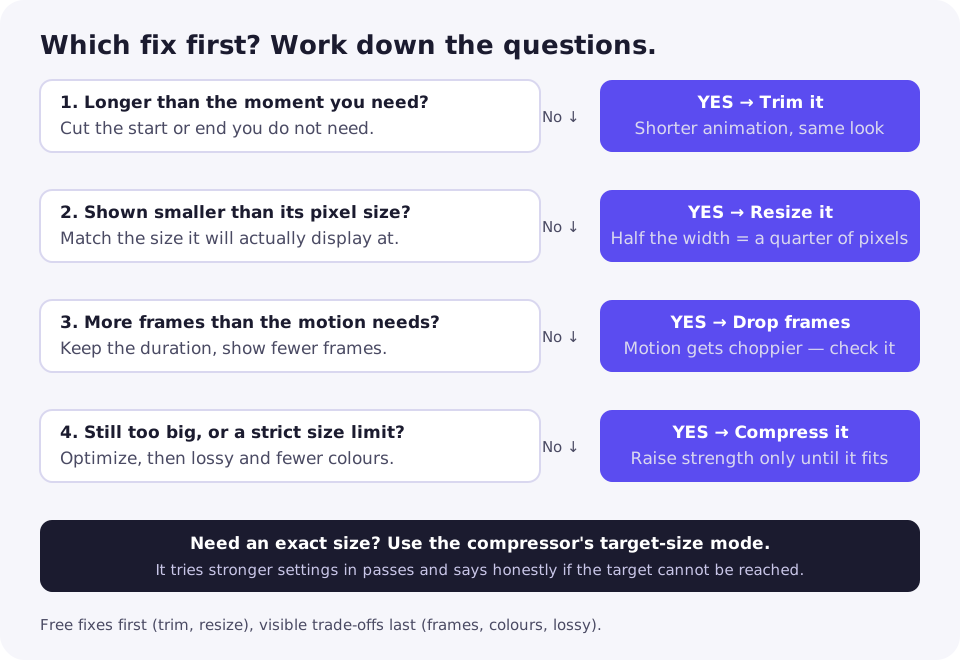
1. Shorten the animation by trimming time
Trimming keeps a start-to-end range of frames and drops the rest. What changes is duration and frame count together: a 6-second clip trimmed to 3 seconds at the same frame rate holds half the frames. The benefit is usually the largest single saving available, and it costs nothing in image quality — the frames you keep are untouched. The cost is content: the trimmed part is gone. Use the GIF trimmer when the moment you want is shorter than the clip you have.
2. Resize the frame dimensions
Resizing shrinks every frame. Pixel count grows with the square of the width, so halving the width and height leaves a quarter of the pixels — which is why resizing beats most other single changes. The benefit is large and predictable in direction, though not in exact percentage. The cost is detail: small text, faces, and fine lines suffer first, and the damage shows most when the GIF is later displayed larger than its new size. Resize to the size the GIF will actually be shown at, never smaller than that, with the GIF resizer. Cropping to the part that matters, with the GIF cropper, is the same idea applied to area instead of scale: fewer pixels per frame, same content.
3. Reduce the number of frames
Dropping frames keeps the animation's duration but shows fewer images per second: the remaining frames get longer delays so the total length stays the same. Halving the frame rate roughly halves the stored frame data, before optimization. The benefit is a smaller file with the same start, end, and length. The cost is smoothness: motion turns choppy, which is easy to miss on a slow pan and obvious on fast movement or a bouncing object. Ten to fifteen frames per second is usually smooth enough for a GIF; below about five, most motion looks like a slideshow. The GIF splitter shows a GIF's frames, which helps you judge how many it actually has.
4. Optimize the palette and compression settings
This is two related levers. Optimization re-stores frames so that only the changed area of each frame is kept, using transparency for pixels that did not move; tools like Gifsicle call this -O3, which tries several optimization methods (Gifsicle manual). It changes nothing visible and is the only lever that is free in quality terms — but it only helps if the GIF was not already optimized. The second lever, lossy compression and colour reduction, trades small colour errors for size: Gifsicle's --lossy option alters colours to shrink output, and --colors caps the palette at anywhere from 2 to 256 colours. Flat artwork often looks the same at 64 colours; gradients and photographs band and blotch. Raise lossy strength and lower colours step by step, and stop as soon as the damage becomes visible. The GIF compressor combines both levers.
5. Combine several adjustments
Combining is how strict size targets are met: trim a little, resize a little, drop some frames, then compress. The benefit is that no single lever has to do all the damage, so the result often looks better than pushing one lever to its extreme. The cost is that the savings do not add up neatly — once optimization has removed the redundancy, each further lever has less left to save, as the controlled test below shows. Combine in the order of this section: free fixes first, visible trade-offs last, and check the finished file after each step rather than applying everything at once.
Choose by your actual problem
Start from what is wrong with your file, not from a favourite setting. Find your row, try its first fix, and only move on if the result still is not small enough.
| Your problem | First fix | Watch out for |
|---|---|---|
| Displayed smaller than its stored size | Resize to the display size | Text and detail lost if shown larger later |
| Longer than the moment you need | Trim the extra seconds | Nothing visual — but the cut content is gone |
| Far more frames than the motion needs | Drop frames, keep the duration | Choppy motion below about 10 fps |
| Noisy, photographic, or gradient-heavy | Lossy compression, then fewer colours | Banding on gradients, blotching on faces |
| A strict upload limit to hit | Combine, then use target-size mode | Some targets are unreachable without visible damage |
| Already optimized and still too big | Resize or trim — compression has little left | Consider whether a GIF is the right format at all |
What a controlled same-file test showed
Advice about percentages is easy to give and hard to trust, because every GIF responds differently. So instead of quoting a generic saving, this section reports one controlled test: a single synthetic GIF, changed one factor at a time, with everything else held constant. The sample was generated locally with gifenc (a GIF encoder already used by this site's codebase): 320×240 pixels, 30 frames at 100 ms each (10 frames per second, 3.0 seconds total), looping, with a static gradient background, a static flat bar, a moving solid circle, and a small square that changes colour each frame. It is labelled synthetic because it is not a real recording — but that is also its strength: the same file went through every variant, so the differences come from the settings, not from different content.
Each variant was processed with Gifsicle through the same engine the ZipGIF site uses (gifsicle-wasm-browser), using the same command shapes as the site's compressor, resizer, and trimmer. The runs happened in a local test harness, not through the site's tool pages, so these are local harness measurements — not a ZipGIF benchmark and not a promise about any other file. Frame counts, dimensions, and durations below were read back from the output files, and quality was judged from the settings used, not from a perceptual score.
| Change (one factor) | File size | Frames | Canvas | Duration | What it costs |
|---|---|---|---|---|---|
| Original (synthetic source) | 294,034 bytes | 30 | 320×240 | 3.0 s | — |
Optimize only (-O3) | 28,086 (−90.4%) | 30 | 320×240 | 3.0 s | Nothing visible |
| Optimize + lossy 80 | 24,834 (−91.6%) | 30 | 320×240 | 3.0 s | Slight colour smoothing |
| Optimize + lossy 120, 64 colours | 20,502 (−93.0%) | 30 | 320×240 | 3.0 s | Banding risk on gradients |
| Resize to 50% | 15,561 (−94.7%) | 30 | 160×120 | 3.0 s | A quarter of the pixels |
| Drop every 2nd frame, delays doubled | 22,127 (−92.5%) | 15 | 320×240 | 3.0 s | 10 fps → 5 fps motion |
| Trim to first half | 19,343 (−93.4%) | 15 | 320×240 | 1.5 s | Half the animation is gone |
| Combined: resize 50% + lossy 120 + 64 colours + every 2nd frame | 7,483 (−97.5%) | 15 | 160×120 | 3.0 s | All of the above at once |
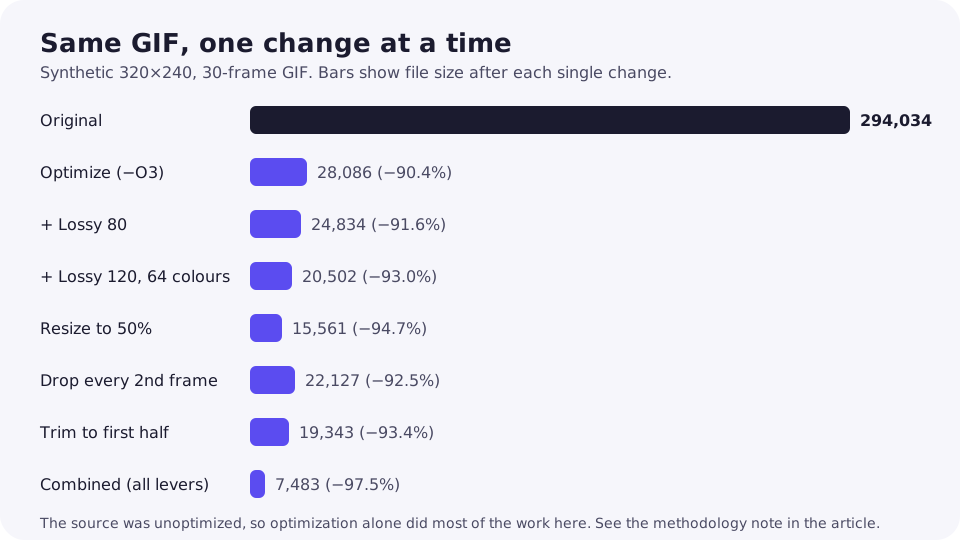
Three lessons stand out. First, optimization alone did most of the work here — because the synthetic source was unoptimized: its encoder had stored every frame as a full image, so storing only changed areas removed most of the file. On a GIF that is already optimized, that lever saves far less, and the other levers matter more. Second, levers interact instead of adding up: dropping half the frames after optimization only moved the result from −90.4% to −92.5%, because most of the redundancy was already gone. Third, resize beat lossy compression and colour reduction on this sample, and trim and frame-dropping landed in a similar place for bytes while costing different things — trim shortens the animation, frame-dropping roughens its motion.
For a different kind of evidence, ZipGIF's separate 16-GIF compression test ran one fixed setting (Gifsicle optimization with lossy 120 and 64 colours) across 16 real files and averaged a 37.0% reduction, with 69.4% at best. That spread is the point: one setting, sixteen files, wildly different results. Treat any single percentage — including the ones in the table above — as a measurement of one file, not a property of the method.
Why the same fix saves 90% on one GIF and 10% on another
LZW compression, the method GIF uses, shrinks data by finding repeated patterns in pixel values (GIF89a specification). Flat colours, still backgrounds, and repeated frames are full of patterns; camera grain, gradients, dithering, and a moving camera break them. That is why content decides the outcome before any setting does: a screen recording with a static window compresses dramatically, while a shaky phone clip of confetti barely compresses at all, whatever you do. The palette matters too — a GIF is limited to 256 colours per frame, so a photographic image already dithered down to 256 colours has little left to give, while a cartoon with 12 real colours can drop to a small palette for free.
History matters as well. A GIF exported by a tool that skipped optimization still contains all the redundancy that optimization removes, so the first optimization pass looks miraculous. A GIF that already went through an optimizer has nothing left in that lever. This is why two people can follow identical steps and report completely different savings without either of them being wrong — and why the only number worth trusting for your file is the one measured on your file.
Two results that confuse people
Why a trimmed GIF can remain large
Trimming removes frames, but it does not touch the frames that remain, and it does not optimize them. If the remaining seconds are still full-size, noisy, and unoptimized, the file stays heavy — just shorter. A trimmed GIF can also stay large when the real problem was never duration: a 2-second GIF at 1200 pixels wide is still a 2-second GIF at 1200 pixels wide. When trimming disappoints, check the dimensions and run an optimizer before concluding that the GIF cannot shrink.
Why faster playback does not necessarily mean a smaller file
Playback speed is controlled by the delay stored with each frame, measured in hundredths of a second in the GIF89a specification. Changing a delay from 100 ms to 50 ms doubles the speed and changes almost no bytes, because the frames themselves are untouched. A file only gets smaller when frames, pixels, colours, or detail are removed. The one exception is dropping frames to speed up motion: fewer frames do shrink the file, but that is the frame removal doing the work, not the speed change — and if delays are lengthened to keep the original duration, the animation is no longer faster at all.
Troubleshooting
The upload is still rejected
First, confirm the limit belongs to the destination and the exact upload type: an emoji limit is not an attachment limit, and a sticker limit may not accept GIF at all. Discord, for example, lists a 20 MB free attachment limit, while its emoji guidance is 256 KB at 128×128 (Discord File Attachments FAQ, Discord custom emoji guide). Second, check the file you are actually uploading — some tools keep the original when the compressed result would be larger, and some editors export a second copy. Third, if the target is genuinely unreachable at watchable quality, the honest fix is less content: trim, resize, or both, then compress again. A target-size mode that tries progressively stronger settings and says plainly when it cannot reach the target, like the one in the GIF compressor, beats a tool that silently hands back a damaged file.
The GIF looks worse than expected
Match the damage to the lever. Banding across skies and gradients points to too few colours — step the palette back up. Blotchy or noisy patches point to lossy strength too high — step it down. Jerky motion points to too few frames — restore frames and shrink somewhere else instead. Softness everywhere points to resizing too far — go back to a larger size and accept a bigger file, or trim instead. Change one setting at a time; if you change three and the result looks wrong, you will not know which one to undo.
One GIF shrinks far less than another with the same settings
That is normal, and it is the content-dependence described above: noise, full-frame motion, and photographic detail resist every lever, while flat graphics and still backgrounds give in easily. Compare the two files' dimensions, frame counts, and content before blaming the settings. If the stubborn file is long camera footage, the next section applies.
When a GIF is the wrong format
Some GIFs stay heavy whatever you do: long clips, camera footage, and anything needing sound or smooth gradients. MDN's image format guide recommends considering WebP or APNG for animation sequences and notes that modern formats generally compress better than GIF, whose 8-bit indexed colour is a real limitation for full-colour animation (MDN image format guide). A muted looping video behaves like a GIF on most websites at a fraction of the size. GIF remains the right choice where only images are accepted, such as emoji, some email clients, and older apps. If your GIF cannot reach its target without falling apart, switching format is not giving up — it is the correct fix.
The practical routine is short: trim what you do not need, resize to the real display size, drop frames only if the motion can spare them, then compress — optimization first, lossy strength and colours last, checking the result at each step. When you need an exact size, let the GIF compressor's target-size mode do the passes for you, and judge the finished file on its own numbers, not on any percentage you read here.
FAQ
How much smaller can I expect my GIF to get?
There is no honest single number. It depends on what made the GIF big: dimensions, frame count, length, noise, or missing optimization. A separate ZipGIF test of 16 GIFs using Gifsicle optimization with lossy 120 and 64 colours averaged a 37.0% reduction, with 69.4% at best — but that was one small sample, not a promise for your file. Run your own GIF through a compressor and read the measured result.
Will compressing my GIF make it look worse?
Optimization alone does not change how it looks: it only stops re-storing pixels that did not change. Lossy compression and fewer colours do change the image, gradually. Raise the strength step by step and compare the result with the original before you download it. Flat artwork tolerates far more than gradients and faces.
Should I trim my GIF or drop frames?
Trim when the animation contains seconds you do not need: the result is shorter but just as smooth. Drop frames when the full duration matters but the motion does not need every frame: the result keeps its length but moves more stiffly. Do not do both by default — each one costs something, and you may only need one.
Why is my GIF still too big after trimming it?
Trimming removes frames, but every remaining frame still costs what it always cost. If the frames are large, noisy, or never optimized, the trimmed GIF can still be heavy. After trimming, resize to the real display size and run an optimizer before judging the result.
Why didn't speeding up my GIF make it smaller?
Playback speed in a GIF is set by delay values stored with each frame, and those values cost almost nothing. Changing them changes timing, not content. A file only shrinks when you remove pixels, frames, colours, or detail — or optimize how frames are stored.
What file size should I aim for?
Aim at the limit of wherever the GIF is going, not at a universal number. Discord's Help Center lists a 20 MB free upload limit (checked October 2026; Discord notes it is experimenting with larger limits for some users), and its emoji guidance is 256 KB at 128×128. Personal Gmail allows 25 MB of attachments in total per message. For a web page there is no limit, only a trade-off: smaller loads faster. GIPHY recommends uploads of 8 MB or less, but that is GIPHY's own guidance, not a general rule.
Sources
- W3C: Graphics Interchange Format, Version 89a
- MDN: Image file type and format guide
- GIPHY: GIF Creation Best Practices
- Gifsicle manual: optimization, colours and lossy options
- Discord: File Attachments FAQ
- Discord: Beginner's guide to custom emojis
- Google: Gmail attachment limits
Platform rules change. The Discord and Gmail limits were taken from the linked pages in October 2026; if an upload fails, check the platform's current page before assuming the numbers above still hold. The controlled-test figures in this article come from a local harness measurement on one synthetic GIF, described in the test section — not from the site's tool pages, and not a promise for any other file.