How to Slow Down a GIF Without Making It Choppy
By Shafiullah Tareen, creator of ZipGIF · Published
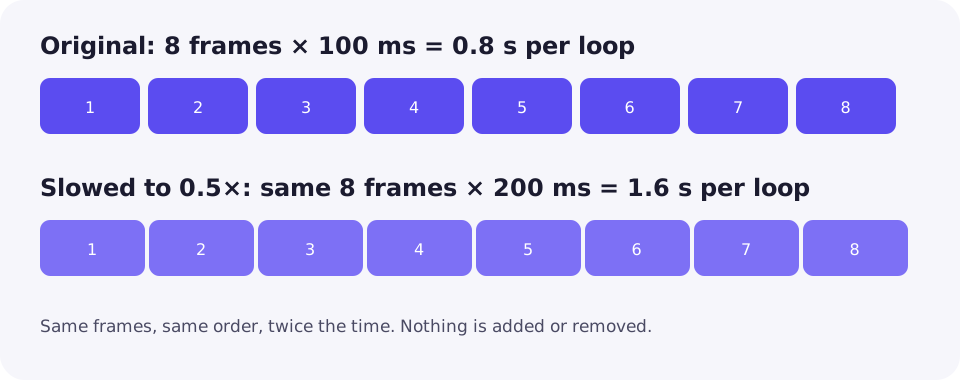
To slow a GIF down, give each frame more time on screen. The cleanest way is to stretch the frame delays: the animation keeps every frame, in the same order, and simply plays each one longer. Duplicating frames can look similar but stores more data, and deleting frames does not slow anything at all — it removes moments instead.
The four ways to slow a GIF down
A GIF has no speed setting of its own. Each frame carries a delay value that says how long to show that frame before moving on, and the GIF89a specification stores that delay in hundredths of a second (GIF89a specification). So every method of slowing a GIF down is really a way of changing what those delays say, or of changing the frames themselves:
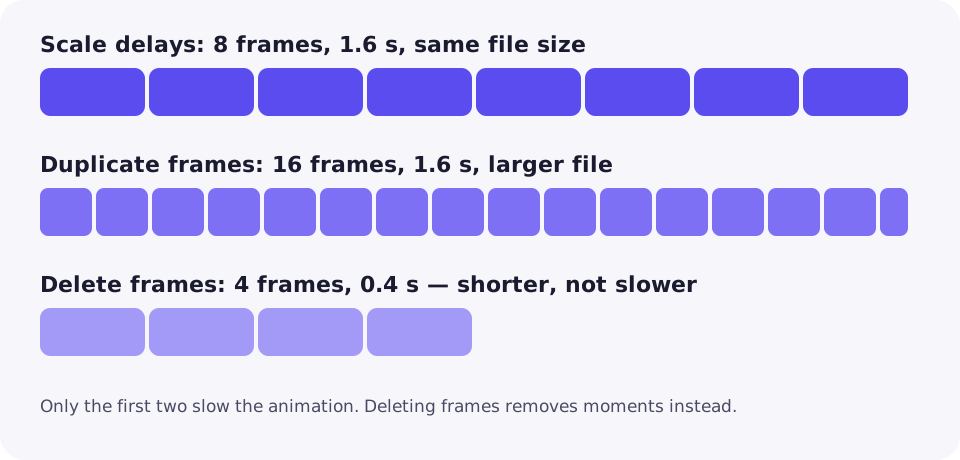
- Scale the frame delays. Multiply every delay by the same factor. At half speed, a 100 ms frame becomes 200 ms. Nothing is added or removed.
- Use a tool's speed control. A speed setting such as 0.5x is the same operation, computed for you: the tool rewrites each frame's delay so the whole animation plays at the chosen fraction of its original speed.
- Duplicate frames. Show each frame twice (or more) at the original delay. The animation takes longer to play through, but the file now stores every picture twice.
- Remove frames. This is the odd one out: it does not slow motion. Cutting frames shortens the animation and makes the remaining motion jump further between poses. It belongs in a trimming workflow, not a slowing one.
The first two are the same idea at different levels of convenience, and they are the right default. Duplication is a fallback for editors that cannot edit delays directly. Removal is included here only because it is so often mistaken for a way to slow things down — it is not.
Longer delays, duplicated frames, or fewer frames?
For a GIF where every frame has the same delay, scaling delays and duplicating frames look identical on screen. A 100 ms frame shown twice is on screen for 200 ms either way. The difference is in the file: delay scaling stores the picture once and waits longer, while duplication stores the picture twice. Delay scaling is therefore the better default — same visible result, smaller file, fewer frames to decode.
The deeper difference is between changing timing and changing content. Scaling delays preserves the animation exactly: every pose the original had is still there, in the same order, for a proportionally longer time. Deleting frames changes the animation itself. A hand wave that took eight frames now takes four, so the hand jumps twice as far between poses. The result is shorter and choppier, and no delay adjustment afterwards can restore the poses that were thrown away.
Variable timing deserves extra care. Many GIFs hold some frames longer than others — a pause on the final frame, for example. Scaling each frame's own delay keeps those proportions: the pause stays proportionally longer than the other frames. Overwriting every frame with one uniform delay flattens that rhythm, so a deliberate pause can disappear. If the animation has a rhythm worth keeping, scale the delays rather than replacing them. To see what timing a GIF actually uses, inspect its individual frames and read each frame's delay before you change anything.
A worked example: halving the speed
Take a uniform-delay animation: 40 frames, each held for 50 ms. Its cycle duration is 40 × 50 ms = 2,000 ms, or 2 seconds. Halving the speed means doubling every delay: 40 frames × 100 ms = 4,000 ms, or 4 seconds. The frame count is unchanged, the order is unchanged, and the loop simply takes twice as long. In nominal frame-rate terms — the arithmetic value 1 ÷ delay, not a guaranteed playback rate — the animation goes from 20 nominal frames per second to 10.
| Speed | Delay per frame | Cycle duration | Nominal frame rate |
|---|---|---|---|
| 1x (original) | 50 ms | 2.0 s | 20 fps |
| 0.75x | 70 ms* | 2.8 s* | 14 fps* |
| 0.5x | 100 ms | 4.0 s | 10 fps |
| 0.25x | 200 ms | 8.0 s | 5 fps |
The starred row shows the format's timing granularity at work. Delays are stored as whole hundredths of a second, so the timing grid has 10 ms steps. Slowing 50 ms frames to 0.75x ideally gives 66.7 ms per frame, but the nearest storable value is 70 ms — so the real cycle is 40 × 70 ms = 2.8 seconds, slightly slower than the ideal 2.67 seconds. The error is small here, but it is a reason to treat scaled timing as approximate: the file stores the nearest representable delay, and the viewer then plays that.
One more specification detail matters for fast GIFs. The specification defines the delay as the wait "if not 0" (GIF89a, Graphic Control Extension), which means a stored delay of 0 does not specify a wait at all — viewers fall back to a default instead. A GIF that looks frantically fast may therefore carry 0 delays rather than genuinely short ones, and scaling its delays still works: the tool reads the effective timing and writes real delays in its place.
What slowing down costs
Slowing a GIF down is cheap in bytes and expensive in feel. Three trade-offs decide whether the result is usable.
Motion gets choppier as it gets slower
Slowing down cannot add information. A source recorded at 10 frames per second holds each frame for 100 ms; at quarter speed each frame holds for 400 ms, and the eye starts seeing a sequence of stills instead of motion. This is the main reason slowed GIFs look bad: the problem is not the slowing, it is the low frame count it exposes. Video tools can interpolate new in-between frames to smooth slow motion, but the GIF format has no such feature — a slowed GIF commits harder to the frames it already has. If smoothness matters more than slowness, slow less.
The loop gets longer
At 0.5x, a 2-second loop becomes a 4-second loop, and a loop set to repeat forever now takes twice as long to reach any given moment. That matters when the GIF is a tutorial or a captioned clip: a viewer who only watches for a few seconds may never reach the end of a slowed cycle. The loop count itself is untouched by a speed change, so if the total viewing time is the problem, change the loop setting or trim the animation rather than the speed.
File size barely moves — unless you duplicate
Delay scaling changes timing values, not pixels, so the slowed file stays close to the original size; re-encoding can shift it slightly either way, but the slower clock alone adds no weight. Duplicating frames is the exception: every copy is stored as another frame, so the file grows with the slowdown. And remember that deleting frames shrinks a file by removing content, which is a different bargain from slowing it down.
Method comparison
| Method | What changes | Frames kept | Cycle duration | File size | Best for |
|---|---|---|---|---|---|
| Scale frame delays | Each delay grows | All | Longer | About the same | Most slowdowns |
| Tool speed control (below 1x) | Each delay scaled for you | All | Longer | About the same | Quick slowdowns with a preview |
| Duplicate frames | Each picture stored twice | All, plus copies | Longer | Larger | Editors that cannot edit delays |
| Delete frames | Poses removed | Fewer | Shorter | Smaller | Trimming, not slowing |
How to slow down a GIF, step by step
The general workflow is the same in any animation editor that shows per-frame timing:
- Open the GIF in an editor that lists frames and their delays, and check whether the timing is uniform or variable. Note any deliberate pauses before you change anything.
- Select all frames. If the editor offers a speed percentage, pick one below 100% — 50% is a good first try. If it offers delay values instead, multiply each delay by the same factor.
- Keep variable timing proportional: scale each frame's own delay rather than overwriting all of them with one value, so pauses stay pauses.
- Preview at the size the GIF will actually be viewed. Small previews hide choppiness, and a slowed GIF that looks fine as a thumbnail can feel like a slideshow at full size.
- Export as a GIF and check the loop time. If the editor reports it, compare it with your target: at 0.5x it should be double the original.
From the command line, the same job is a delay rewrite. Gifsicle's delay option writes the delay for frames, so a uniform value flattens variable timing while per-frame values preserve it — the same distinction as in an editor, just expressed as flags. Whichever route you take, check the finished file in the viewer where it will actually be seen, not only in the editor: viewers round delays to the format's 10 ms steps and may substitute a slower default for very short delays, so encoded timing and observed playback are not always identical.
Slowing a GIF with ZipGIF
If you do not want to edit delays by hand, change GIF playback speed with ZipGIF's speed changer. Drop a GIF in, pick a speed below 1x — presets of 0.25x, 0.5x, and 0.75x, or the slider anywhere from 0.1x to 8x — and set how it loops: keep the original loop, loop forever, play once, or repeat a custom number of times. The readout shows the loop time before and after, so you can see the slowdown before you download. Slowing down never drops frames in this tool, each frame keeps its own share of the timing, and no delay is written below 2 hundredths of a second. The work runs in your browser, so the GIF is not uploaded anywhere. This section is deliberately short: the tool page itself carries the full walkthrough.
Troubleshooting
It still seems too fast
Check that you picked a speed below 1x — above 1x speeds the GIF up. If the source used very short or 0 delays, scale further: a 0.5x slowdown of a 20 ms frame still leaves a 40 ms frame, which can read as fast. Test the result in a second viewer to rule out one app's timing habits.
It became choppy
The source frame rate is the limit. Slow less — 0.75x instead of 0.25x — or accept the trade-off. Duplicating frames will not help: it repeats the same poses, so the motion stays just as stepped.
It plays differently across viewers
Delays are rounded to 10 ms steps, viewers may substitute a slower default for very short delays, and chat apps often convert GIFs to video and retime them. Keep delays at or above 20 ms for the most consistent playback, and always test the finished file on its destination.
The file got bigger
You probably duplicated frames, or the re-encode stored frames less efficiently than the original. Redo the slowdown with delay scaling instead of duplication, and if the file is still too large, reduce GIF file size as a separate step.
The loop feels endless now
Slowing doubles the time each loop takes, so a forever loop can feel much longer. Set the loop to play once or a custom count in the speed changer, or trim a GIF to the section that matters before slowing it.
FAQ
Does slowing down a GIF reduce its quality?
Not when you scale the delays: the pixels are untouched, so the picture is exactly as sharp as before. What changes is how long each picture stays on screen. Quality only suffers if you also resize, cut colours, or drop frames in the same edit.
Can I slow down only part of a GIF?
Yes, because delays are stored per frame. In an animation editor you can give longer delays to just the frames you want to linger on and leave the rest alone. ZipGIF's speed control scales the whole animation at once, so for a partial slowdown use an editor that edits frames individually.
Why does my slowed GIF look like a slideshow?
Slowing down exposes how few frames the source has. A GIF recorded at 10 frames per second already holds each frame for 100 ms; at quarter speed each frame holds for 400 ms, and the eye starts seeing stills instead of motion. Slow less, or accept that the source cannot look smoother than it was captured.
Does slowing a GIF make the file bigger?
Scaling delays alone does not: the same frames are stored, only their timing values change, so the size stays close to the original. Duplicating frames does make the file bigger, because every copy is stored as another frame. Re-encoding can shift the size slightly either way.
What speed should I pick for readable text or subtitles?
Start at 0.5x and watch the result at the size it will actually be viewed. If a caption is still unreadable, try 0.25x, but check whether the motion has turned choppy. There is no universal right value: it depends on how fast the text moves and how many frames the source has.
Will the slowed GIF play at the same speed everywhere?
Not always. Viewers round delays to the format's 10 ms steps and may substitute a slower default for very short delays, and chat apps often convert GIFs to video and retime them. Always test the finished file in the app or browser where it will be seen.
Sources
- W3C: Graphics Interchange Format, Version 89a — frame delay stored in the Graphic Control Extension in hundredths of a second; the wait is defined "if not 0".
- MDN: Image file type and format guide — GIF as a widely supported basic animation format.
ZipGIF-specific behaviour described above — speed presets and slider range, loop settings, no frame dropping when slowing, and the 2-hundredths minimum delay — reflects the site's speed-changer implementation. Viewer behaviour varies by app and version, so test the finished file on its destination.
Next step: if the animation is right but the file is too big, or the moment needs trimming first, work through the method that matches the actual problem — then slow it down with the GIF speed changer.