How to Make a GIF From Images
By Shafiullah Tareen, creator of ZipGIF · Published
Making a GIF from images takes four decisions: which images, in which order, how long each one stays on screen, and whether the animation loops. Get those four right and the export itself is one click — and with ZipGIF's converter it all happens in your browser, with nothing uploaded.
The short answer
A GIF made from images is just a stack of still pictures played in order, each shown for a set time. Pick your images — PNG, JPG, or WebP — put them in playback order, set one frame delay that applies to every frame, choose whether the GIF loops forever, plays once, or repeats a set number of times, and export. One image on its own becomes a still GIF; two or more become an animation.
The two things most people get wrong are order and timing. Order is decided by the sequence you feed the tool, not by file names alone, so check the thumbnails before you export. Timing is a duration per frame, not a frame rate setting: a delay of 100 milliseconds per frame plays at about 10 frames per second, and 500 milliseconds plays at about 2. Everything else in this guide is detail around those two decisions.
Before you start: what you need
You need a set of still images and a rough idea of the motion. Common sources are photos taken in burst mode, screenshots of a process, frames exported from an editor or a video, and artwork drawn frame by frame. If you are starting from a single still image and need to invent motion from scratch, that is a different job — animating a PNG image covers creating frames before you convert them.
- Formats: PNG, JPG, or WebP. Anything else is skipped with a note, so check the message if a file seems to vanish.
- Count and size: up to 20 images per run, each under 200 MB. Twenty frames is plenty for a short loop; longer sequences should be trimmed to the essential motion first.
- Order: name files so that sorting matches playback order — frame-001, frame-002, and so on. Without zero-padding, frame-10 sorts before frame-2 and the animation scrambles. You can still fix the order by dragging thumbnails in the tool.
- Size: ideally every image has the same dimensions. Mixed sizes still work — the first image sets the canvas and the rest are fitted inside it — but matching sizes avoids surprises, as explained below.
- One caveat: an animated PNG (APNG) dropped in converts as a single frame, because the tool reads still images and does not unpack APNG animation. Export an APNG's frames as separate images first.
Step by step with ZipGIF
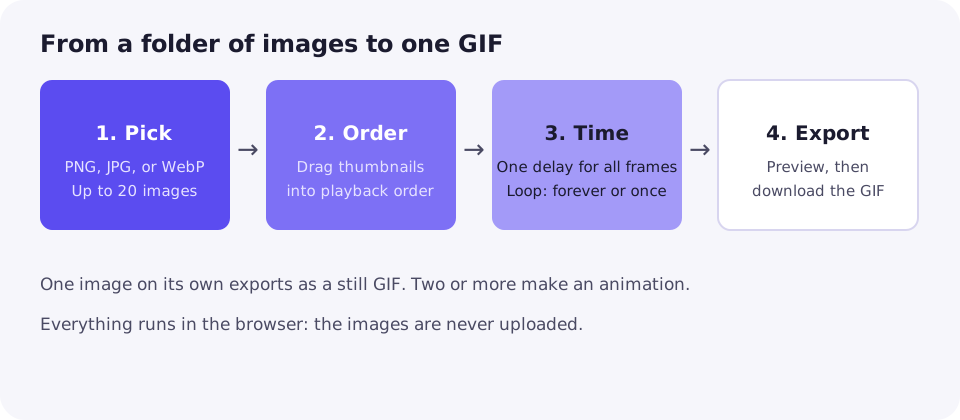
- Drop your images on the PNG to GIF converter. Files are read on your device and never uploaded, and each one appears as a numbered thumbnail.
- Drag the thumbnails into playback order. This order — not the file names — is what the GIF will play, so watch the sequence once in your head before moving on.
- Set the frame delay in milliseconds. The default is 100 ms per frame, about 10 frames per second. The tool shows the nominal frame rate next to the delay as you change it, which saves you the arithmetic.
- Choose the loop setting: loop forever, play once, or repeat a custom number of times. Forever suits reaction GIFs and looping graphics; once suits an animation that should play and stop.
- Press Convert to GIF, check the preview in the results card, and download. If anything looks off — order, speed, or framing — fix that one setting and convert again. Each run is fast and costs nothing.
If the preview plays too fast, raise the delay rather than deleting frames: deleting frames removes motion, while a longer delay keeps every frame and simply shows each one longer. If it plays too slowly, lower the delay — but remember the delay cannot go below 20 ms in this tool, and very short delays can make viewers drop frames anyway.
Timing: delays, frame rates, and holds
A GIF has no single frame rate. Each frame carries its own delay, and the nominal frame rate is just 1000 divided by the delay in milliseconds. That is why guides that say "GIFs are 10 fps" are misleading: a GIF's speed is whatever its delays add up to, and two GIFs with the same frame count can play at completely different speeds. How GIF frame delays relate to FPS explains this in full.
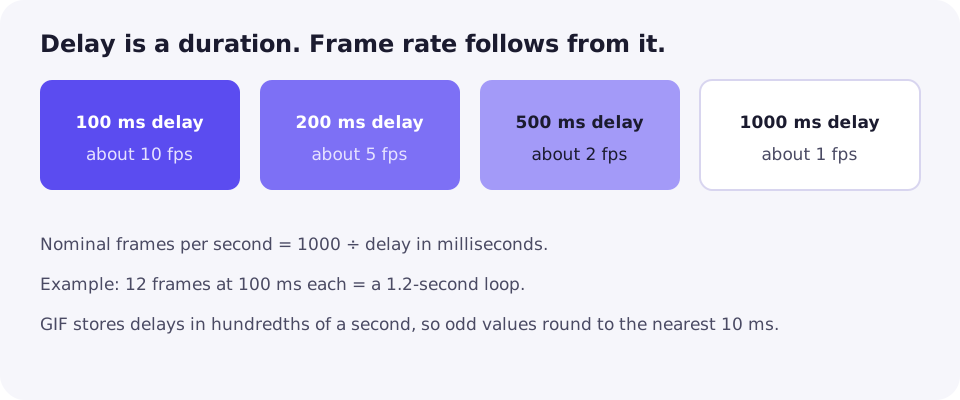
Total loop time is just as easy: frames multiplied by delay. Twelve frames at 100 ms each run for 1.2 seconds per loop; the same twelve frames at 500 ms run for 6 seconds. Decide the loop length you want first, then divide by your frame count to get the delay. A reaction GIF usually feels right at 100 to 200 ms; a step-by-step demo or slideshow reads better at 500 to 1000 ms, giving the eye time to absorb each image.
One delay for every frame — and the workaround
This tool sets a single delay for all frames, so you cannot give one frame a longer pause than the others directly. The practical workaround is duplication: to hold a frame on screen longer, add the same image again in a row. Three copies at 100 ms hold that picture for 300 ms, and the viewer sees a deliberate pause rather than a frozen glitch. It costs a little file size, but for a title card or a punchline frame it is the simplest honest fix.
One more rounding detail: GIF stores delays in hundredths of a second (GIF89a specification), so a delay you type is rounded to the nearest 10 ms on export. 100 ms is stored exactly; an odd value like 35 ms becomes 40 ms. For ordinary delays this drift is invisible, but do not rely on millisecond-perfect timing in a GIF — the format cannot express it.
Canvas size and mixed image sizes
The first image you add sets the output dimensions for the whole GIF. Every later image is fitted inside that canvas, centred, and never stretched: a smaller or differently shaped image keeps its proportions and the leftover space becomes transparent padding. That rule is why the first image matters most — put your largest or most important image first when your sources are uneven.
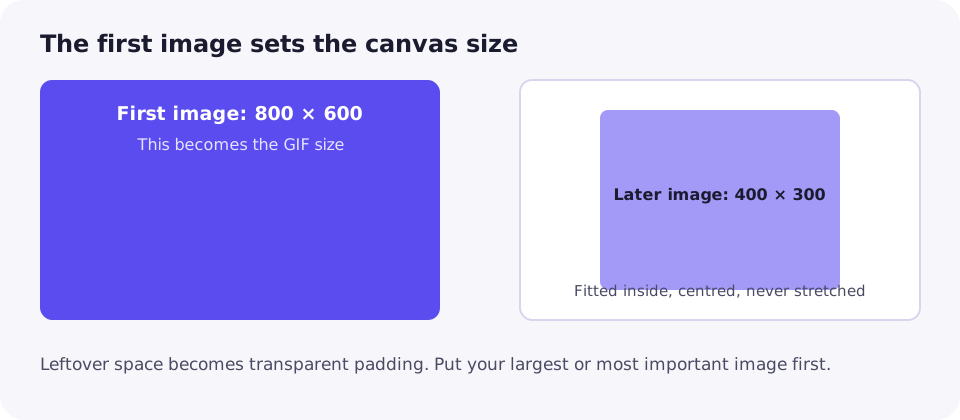
If you would rather have no padding at all, fix the sources before converting: resize or crop the odd images to a common size first, then convert. And if the finished GIF is too large for its destination, the size fix usually comes after export — see the finishing touches below — not from shrinking the delay, which only changes speed.
Colour and transparency: what changes
Shape and sharpness survive conversion untouched. Colour depth does not. A PNG or WebP source can hold millions of colours, while a GIF frame holds at most 256 colours — 255 when the GIF is transparent, because one palette slot is reserved for transparency. Flat graphics, text, screenshots, and line art come through essentially identical. Photographs are the honest exception: skies and skin tones band slightly where a smooth gradient is flattened into 256 steps. If your sequence is photographic and every shade matters, GIF is the wrong container and no converter will change that.
Transparency follows the same on-or-off rule. GIF has no partial transparency, so the converter makes pixels less than half opaque fully transparent and keeps the rest opaque. Soft shadows, glows, and feathered edges therefore turn into hard edges, and can show a light halo against a dark background. The fix takes seconds in any editor: flatten soft shadows onto the background colour the GIF will sit on before converting, so only the fully empty area is cut away. Hard-edged logos and stickers need nothing at all.
After encoding, the tool runs an optimisation pass over the GIF bytes and keeps the optimised result when it is smaller, which squeezes out redundancy between frames. That is free size saving with no quality cost, and one reason to export here rather than in a tool that skips optimisation.
Finishing touches
The exported GIF is rarely the final file. Four follow-up steps cover almost every case: if it is too large for its destination, compress the GIF — trimming, palette, and compression choices are covered in making a GIF smaller. If the framing is off, crop it; if the dimensions are wrong, resize it. If the timing feels off after export, the speed changer adjusts the delays of an existing GIF without rebuilding it from the images. And if you want to check what actually ended up in the file, the splitter shows every frame.
Troubleshooting
Frames play out of order
Check the thumbnail order in the tool, not just the file names. Drag thumbnails until the sequence reads correctly, then convert again. For next time, rename with zero-padded numbers so sorting matches playback.
The animation is too fast or too slow
Adjust the delay, not the frame count. Raise it to slow down, lower it to speed up, and remember the 20 ms floor and the rounding to hundredths of a second.
One frame stays on screen too briefly
Duplicate that image in a row. Each copy adds one more delay-length hold, so three copies at 100 ms hold the picture for 300 ms.
The GIF has transparent bars or padding
Your images have mixed sizes and the first image set a larger canvas. Either reorder so the largest image is first, or resize the sources to a common size before converting.
Soft edges turned hard or haloed
That is GIF's on-or-off transparency, not a conversion error. Flatten soft shadows onto the destination background colour before converting, or accept the hard edge for flat artwork.
The GIF is much larger than the images were
Check dimensions, frame count, and colour complexity first. Fewer frames, a smaller canvas, or compression help more than changing the delay, which affects speed, not size.
A file was skipped
The tool skips files that are not PNG, JPG, or WebP, files that are empty, and files over 200 MB, and tells you which ones and why. Convert the rejected file to an accepted format, or split a large sequence, and try again.
An APNG came out as a single frame
That is expected: the tool reads still images and does not unpack APNG animation. Export the APNG as separate PNG frames in an APNG-aware editor first, then convert the sequence.
FAQ
What image formats can I use?
PNG, JPG, and WebP. Files are accepted by their type or their extension, so a correctly named .png, .jpg, .jpeg, or .webp file works. Other formats, including BMP, AVIF, and GIF itself, are skipped with a note telling you so.
How many images can I turn into one GIF?
Up to 20 images in one run, and each file must be under 200 MB. One image on its own exports as a still GIF; two or more make an animation. If you have more than 20 frames, split the sequence into two GIFs or drop some in-between frames first.
Can I set a different delay for each frame?
Not in this tool: one delay applies to every frame. To hold a frame on screen longer, add the same image again in a row — three copies at 100 ms each hold that picture for 300 ms. If you need fully independent per-frame timing, an editor that exports GIFs is the better choice.
Are my images uploaded anywhere?
No. The conversion runs in your browser tab: the images are decoded on your device, encoded into a GIF, and optimised there. Nothing is sent to a server, there is no signup, and the output carries no watermark.
Why is my GIF bigger than the images I started from?
Usually because of dimensions, frame count, or colour complexity. A GIF stores every frame as pixels with at most 256 colours, so a long, large, photographic sequence adds up fast. Shrink the canvas, drop frames, or run the result through the GIF compressor rather than re-exporting at a lower delay, which changes speed, not size.
Can I make a GIF from a video this way?
Not directly: this tool takes still images, not video files. Export the video's frames as images first — most video editors and many free tools offer an image-sequence export — then feed those images in as a sequence, in order, at the delay that matches the original frame rate.
Sources
Tool behaviour described here follows ZipGIF's own PNG to GIF tool code and page: accepted formats, the 20-image and 200 MB limits, first-image canvas sizing, centred fitting, the single uniform delay, loop options, and the 50% transparency threshold. Platform rules change; check the destination's current documentation before relying on a limit.