How to Animate a PNG Image: APNG, GIF, and Frame Sequences
By Shafiullah Tareen, creator of ZipGIF · Published
A PNG file on its own does not move. To animate a PNG you must either create the frames that show the motion, or convert an animation you already have into a format your destination accepts. The two animated formats that matter here are APNG, which is PNG with animation, and GIF. Which one you pick depends on where the animation will be shown and how much colour and transparency quality you need.
The short answer
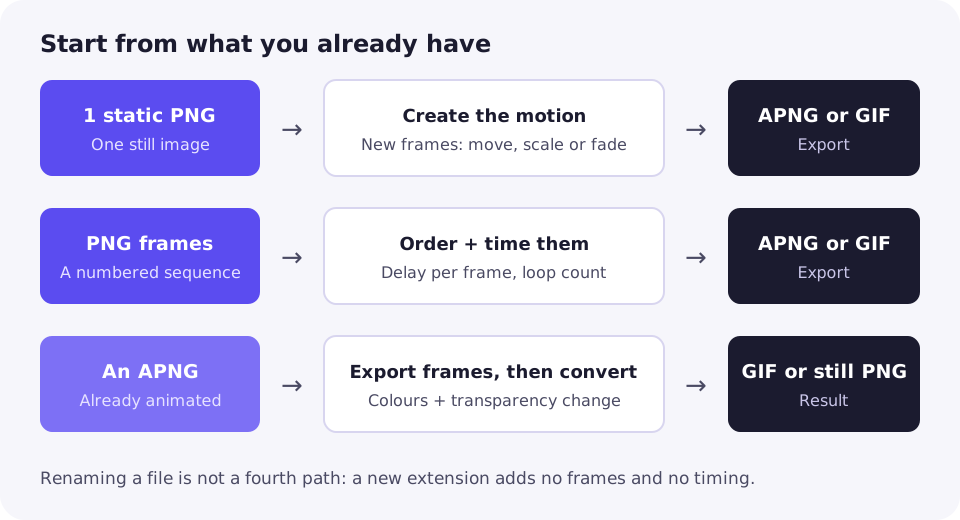
There are three different starting points, and they need three different workflows. If you have one still PNG, you have to create motion: build a series of frames in which the artwork changes slightly from one frame to the next. If you already have a set of PNG frames, you only have to order them, set their timing, and export. If you already have an animated PNG (APNG) and need a GIF, you are converting, not creating: the motion already exists, but the colours, transparency, and timing have to be translated into what GIF can hold.
The confusion usually comes from the file extension. A PNG and an APNG often both end in .png, and a GIF is a different format altogether. The extension is a label. What decides whether a file moves is what is stored inside it: one image, or a sequence of images with timing.
PNG, APNG, and GIF: three different things
An ordinary PNG is one still image
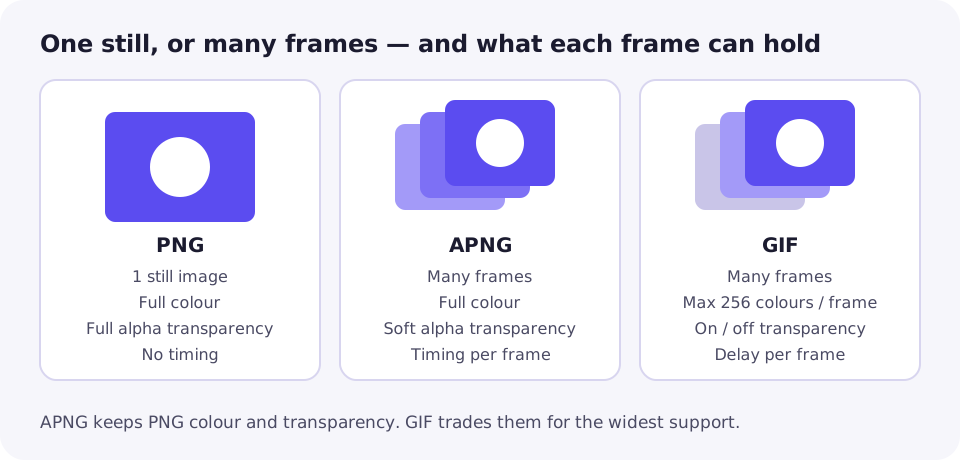
PNG is a still-image format with lossless compression, full colour, and full alpha transparency, meaning each pixel can be anything from fully opaque to fully transparent, with every shade in between (MDN: Image file type and format guide). Nothing in a plain PNG describes a second frame, a delay, or a loop. Renaming it to .gif or .apng adds none of those things; at best you get a still image wearing the wrong extension, and at worst a file some apps refuse to open.
APNG is PNG with animation added
APNG extends PNG with extra chunks that describe the animation: one chunk declares how many frames there are and how often they loop, and each frame carries its own size, position, and delay, stored as a fraction of a second (APNG Specification). It keeps PNG's strengths, including 24-bit colour and 8-bit transparency, so gradients stay smooth and soft edges stay soft. APNG was originally a Mozilla extension and has since been incorporated into the PNG specification's third edition, which is why the .png extension is still correct for it.
APNG is also deliberately backwards compatible. A viewer that does not understand the animation chunks ignores them and shows a single image: the default image stored in the file. That is a useful safety net, and also the reason an APNG can look like a still image in the wrong app. It is not broken; the viewer is simply showing the fallback. Current major browsers all support APNG: MDN lists Chrome 59, Edge 12, Firefox 3, Opera 46, and Safari 8 as the versions that introduced it (MDN: Image file type and format guide).
GIF is a separate, older animation format
GIF stores a sequence of frames, each with its own delay measured in hundredths of a second (GIF89a specification). Its limits are the ones to remember: each frame can use at most 256 colours, and transparency is a single palette colour that is either fully visible or fully transparent, with no partial levels. Looping comes from a widely supported application extension rather than the original specification text. In exchange, GIF plays almost everywhere: browsers, chat apps, email clients, and older software.
| Property | PNG | APNG | GIF |
|---|---|---|---|
| Animated? | No, one still image | Yes | Yes |
| Colours per frame | Full colour | Full colour | At most 256 |
| Transparency | Full alpha, per pixel | Full alpha, per pixel | On or off only |
| Frame timing | None | Fraction of a second | Hundredths of a second |
| Looping | Not applicable | Loop count, 0 means forever | Loop count via extension |
| Viewer without support | Shows the image | Shows the default image | Shows the first frame |
| Typical extension | .png | .apng or .png | .gif |
First, work out which situation you are in
Everything below follows from one question: what do you already have? A single still image, a folder of frames, or a finished animation in the wrong format? Pick your row, and ignore the rest until you need it.
Situation 1: one static PNG
This is the only situation where motion has to be invented. An animation is a sequence of frames, and motion is simply the difference between one frame and the next. If every frame is identical, the result is a still image that happens to be stored as an animation. So the work is drawing, or arranging, those differences.
- Decide what moves, and how far. A logo sliding in, a character blinking, a button pulsing: one clear movement beats several competing ones.
- Build the frames in an animation or image editor. Duplicate the artwork onto each frame, then change it a little each time: shift its position, scale it, or fade its opacity. Small, even steps look smoother than one big jump.
- Keep every frame the same canvas size. Frames of different sizes cause cropping, padding, or rejection depending on the tool, and the animation will judder.
- Set a delay for each frame. A uniform 100 milliseconds per frame is a reasonable starting point, about 10 frames per second in nominal terms, and you can lengthen the delay on a frame you want the eye to rest on.
- Export as APNG or GIF, then watch the result in a browser before you share it. Previewing catches reversed frames and wrong delays that are hard to spot in an editor timeline.
One tempting shortcut deserves a warning. Animating a PNG with CSS on a web page moves the image on that page, but it does not create an animation file. Download or share the PNG and the motion stays behind. If you need a file that moves wherever it goes, you need frames in the file itself.
Situation 2: a set of PNG frames
A frame sequence is a folder of still images, one per frame, in playback order. It is the raw material of animation: video editors import it directly, and converters turn it into APNG or GIF. If you exported frames from an editor, a screen recording, or another animation, this is where you start, and no new artwork is needed.
- Check the order first. Name frames so that alphabetical sorting matches playback order: frame-001, frame-002, and so on. Without zero-padding, frame-10 sorts before frame-2 and the animation scrambles.
- Check that every frame has the same dimensions, and fix the odd ones out before converting rather than hoping the converter guesses correctly.
- Set the timing. A uniform delay is the simplest choice; vary it only where a pause or a held frame is deliberate. Remember that GIF rounds delays to hundredths of a second, so very fine APNG timing will not survive a GIF export exactly.
- Set the loop count: forever for a looping graphic, once for an animation that should play and stop.
- Export as APNG if colour and soft transparency matter, or as GIF if the file must play anywhere. Then preview the exported file, not just the editor timeline.
A frame sequence is also a useful intermediate format in the other direction. If you have a GIF and want its frames as editable stills, converting a GIF to PNG with the all-frames option produces exactly such a numbered sequence, which you can edit and re-export.
Situation 3: an APNG you want to convert
Start by confirming what you actually have. Because APNG files usually carry the .png extension, the extension alone proves nothing. Open the file in a browser: if it moves, it is animated. If it sits still, it is either a plain PNG or an APNG shown by a viewer that only displays the default image. When in doubt, an editor that lists frames will settle it.
APNG to GIF: what changes
Conversion is translation, and GIF cannot express everything APNG can. Colours are reduced to at most 256 per frame, so gradients and photographs band or dither. Smooth alpha becomes on-or-off transparency, so soft shadows and feathered edges turn into hard edges, sometimes with a light halo against a dark background. Frame delays are rounded to hundredths of a second. None of this means the conversion failed; it means the target format is narrower. If the result looks wrong, the fix is usually to simplify the artwork or accept APNG for that destination, not to run the same conversion again.
APNG to still PNG
This direction is simple: take the default image, or the frame you want, and save it as a PNG. That is also what viewers without APNG support already show, so if your audience sees a still image where you expected motion, check whether their app supports APNG before rebuilding anything.
The ZipGIF limitation to know about
ZipGIF's PNG to GIF converter reads still PNG images. An APNG dropped into it converts as a single frame, because the tool does not unpack APNG animation. The workaround is to export the APNG as separate PNG frames in an APNG-aware editor first, then feed those frames to the converter as a sequence. That two-step route is honest extra work, but it preserves your control over ordering and timing.
APNG or GIF: how to choose
Choose APNG when quality matters most: gradients, photographs, logos with soft shadows, and anything shown on a website in a current browser. Choose GIF when compatibility matters most: chat apps, email, and any destination that names GIF as its expected format. If you are unsure, export both from the same frames and compare them side by side for your actual artwork; there is no universal winner on file size, because it depends on colours, dimensions, and frame count.
One more distinction matters for the web. An animated image file is self-contained: it moves wherever the file goes. A CSS or scripted animation is not a file at all, so it cannot be uploaded, attached, or posted as an image. Do not promise a client or a platform an "animated PNG" and deliver a web page effect.
Trying it with ZipGIF's PNG to GIF converter
If your frames are ready and GIF is the right target, convert PNG to GIF in your browser, with nothing uploaded. Drop one or more PNG images onto the tool (JPG and WebP are accepted too), drag the thumbnails into frame order, set the delay in milliseconds, and choose whether the GIF loops forever, plays once, or repeats a set number of times. One image produces a still GIF; several produce an animation.
Two behaviours are worth knowing before you start. First, transparency follows GIF's rules: the converter keeps pixels above 50% alpha opaque and makes pixels at or below 50% fully transparent, because GIF has no partial transparency. Second, as noted above, an APNG goes in as a single frame, so export its frames first. If the finished GIF is too large for its destination, reduce GIF file size with the compressor rather than re-exporting at lower quality by guesswork.
Troubleshooting
The renamed file does not move
Renaming never adds frames. Build the frames in an editor, or start from a real frame sequence, and export again.
The APNG shows as a still image
The viewer or app probably does not support APNG and is showing the default image. Test the same file in a current browser; if it moves there, the file is fine and the destination is the problem. Use GIF for that destination.
The GIF looks posterised or banded
That is the 256-colour limit. Simplify gradients, reduce the number of distinct colours, or keep the animation as APNG.
Transparency has a white or hard edge
GIF transparency is on or off, so a soft edge cannot survive conversion. Match the edge to the background it will sit on, or stay with APNG.
Frames play out of order
Check the file names. Without zero-padding, alphabetical order puts frame-10 before frame-2. Rename with equal-width numbers and re-export.
The animation is too fast or too slow
Adjust the per-frame delays rather than adding or deleting frames. Remember that GIF rounds delays to hundredths of a second, so tiny timing differences may vanish on export.
ZipGIF turned my APNG into a single frame
That is expected: the converter reads still PNG images and does not unpack APNG animation. Export the APNG as separate PNG frames first, then convert the sequence.
The GIF is much larger than the PNGs were
Check dimensions, frame count, and colour complexity first. Fewer frames, a smaller canvas, or compression usually helps more than re-exporting the same frames at a lower delay. You can also inspect the GIF's frames to see what is actually stored.
FAQ
Can I just rename a PNG to .gif or .apng to animate it?
No. Renaming changes the label, not the contents. A renamed PNG still holds one still image, so a viewer has nothing to animate. Real animation needs frames and timing stored in the file, which only an editor or converter can add.
Does APNG work everywhere a GIF does?
Not quite. Every current major browser plays APNG, but chat apps, social platforms, and email clients vary: some accept it, some convert it, and some show only the still default image. If the destination matters more than quality, GIF is the safer choice.
Will converting APNG to GIF keep smooth transparency?
No. GIF transparency is on or off for each pixel, so a soft shadow or feathered edge becomes a hard edge, sometimes with a visible halo against a different background. Keep the background colour in mind before converting, or stay with APNG.
How many frames do I need for smooth motion?
It depends on the movement. Simple slides, fades, and blinks read well at around 10 to 12 frames per second. Fast or detailed motion looks smoother with more frames, but every frame adds size. Start low, preview the result, and add frames only where the motion visibly stutters.
Can ZipGIF turn my APNG into a GIF?
Not directly. ZipGIF's PNG to GIF converter reads still PNG images, so an APNG dropped in converts as a single frame. Export the APNG as separate PNG frames in an APNG-aware editor first, then feed those frames to the converter.
Is APNG better than GIF?
For picture quality, usually yes: APNG keeps full colour and smooth transparency, while GIF is limited to 256 colours per frame and on-or-off transparency. For compatibility, GIF still wins. Pick APNG for the web and GIF for wherever the file must play without question.
Sources
- W3C: Graphics Interchange Format, Version 89a
- MozillaWiki: APNG Specification (noting its incorporation into the PNG Third Edition specification)
- MDN: Image file type and format guide
Tool behaviour described here follows ZipGIF's own PNG to GIF and GIF to PNG pages. Platform rules change; check the destination's current documentation before relying on a limit.