How to Resize a GIF
By Shafiullah Tareen, creator of ZipGIF · Published
To resize a GIF, open it in a resizer, pick the new size — exact pixels, a percentage, or a platform preset — and download the result with the animation intact. Resizing changes how many pixels wide and tall the picture is; it does not change the timing, and it is not the same job as compressing or cropping. Keep the aspect lock on unless you mean to stretch, and check the result at full size before you upload it.
How to resize a GIF, in short
The whole job takes about a minute in ZipGIF's GIF resizer, and it runs entirely in your browser — the file never leaves your device, there is no signup, and the output has no watermark.
- Add your GIF. Drop the file onto the tool, paste it from the clipboard, or paste a direct image URL. You can queue up to twenty GIFs at once and resize them all to the same size, with a single .zip at the end.
- Pick a size. Use the Dimensions, Percentage, or Presets tab — the three options are explained below. The tool shows a before-and-after preview, so you can see the new dimensions before anything is processed.
- Resize and download. Press Resize GIF and download the result. Every frame is scaled together, so the animation survives intact — a resized GIF is still a GIF, with the same timing and loop as the original.
One thing worth knowing about what happens in between: most GIFs in the wild are frame-optimized, meaning each frame stores only the rectangle that changed since the previous one. Scaling those rectangles directly would leave ghost trails. The resizer rebuilds every frame in full first, scales the complete picture, then re-optimizes the file at the end. That is why the output looks right where a naive resize smears.
Dimensions vs file size: the maths that matters
Resizing changes dimensions. File size usually follows, but not by the same number, and understanding why saves a lot of confusion later. The key quantity is pixel area: width multiplied by height.
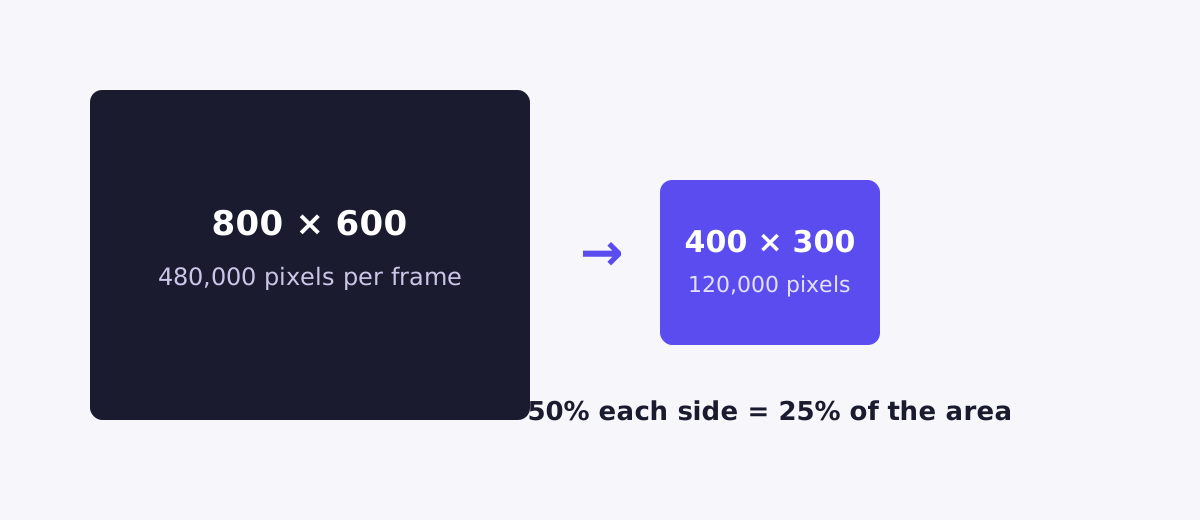
Take an 800×600 GIF. That is 480,000 pixels per frame. Halve both sides to 400×300 and you get 120,000 pixels per frame — a quarter of the area, not a half. This catches people out: a 50% resize in each dimension is a 75% cut in pixels. The same maths in the other direction: a 640×360 clip (230,400 pixels) at 320×180 is 57,600 pixels, again a quarter. And a 25% resize leaves one sixteenth of the area.
GIF bytes track pixel area fairly closely, but never exactly. Headers, colour palettes, and per-frame overhead do not shrink with the picture, and a GIF with hundreds of frames carries more of that fixed weight than a short loop does. So a 50% resize normally produces a much lighter file, but the exact saving depends on the GIF itself — photographic footage with heavy dithering resists shrinking harder than flat graphics or screen recordings. Treat any tool that promises an exact percentage as guessing.
The practical consequence: if a platform gives you a pixel number, resize. If it gives you a KB or MB number, you need compression as well — or instead. The next sections keep those two jobs separate, because mixing them up is the most common reason a GIF still fails to upload after twenty minutes of fiddling.
Three ways to pick a new size
ZipGIF's resizer offers three ways to choose a size, and they suit different problems. All three feed the same resize engine, so quality is identical whichever you pick.
Dimensions: when someone handed you a number
Type an exact width and height in pixels. The aspect lock is on by default, so typing a width makes the height follow automatically and the proportions stay correct. Unlock it only when you genuinely want to squash or stretch the picture — unlocking is how stretched GIFs happen, and it is almost never an accident worth keeping. Typed dimensions are clamped to a 5,000px maximum, a guard rail against a typo turning into a browser out-of-memory crash rather than a resize.
Percentage: when you want "about half this"
The percentage slider runs from 10% to 200% of the original, with quick chips for 75%, 50%, and 25%. Percentage mode is the fastest way to scale a screen recording down to something that fits a chat window, and the aspect ratio is safe by definition — both sides scale by the same factor, so nothing can stretch. Most screen recordings captured at full width turn out right at 50%.
Presets: when a platform will reject the file otherwise
One click each for the sizes platforms actually ask for. The preset chips state the dimensions they apply, and a documented byte limit only where an official one exists — no invented limits. The full list, with the platform notes that matter, is in the platform table below.
Aspect ratio: keep it, or stretch it on purpose
Aspect ratio is just the relationship between width and height: a 16:9 clip is nearly twice as wide as it is tall, a square is 1:1. Keeping that relationship is what makes a resized GIF look like the same picture, only smaller. Breaking it is what makes people in frame look wider or taller than they are.
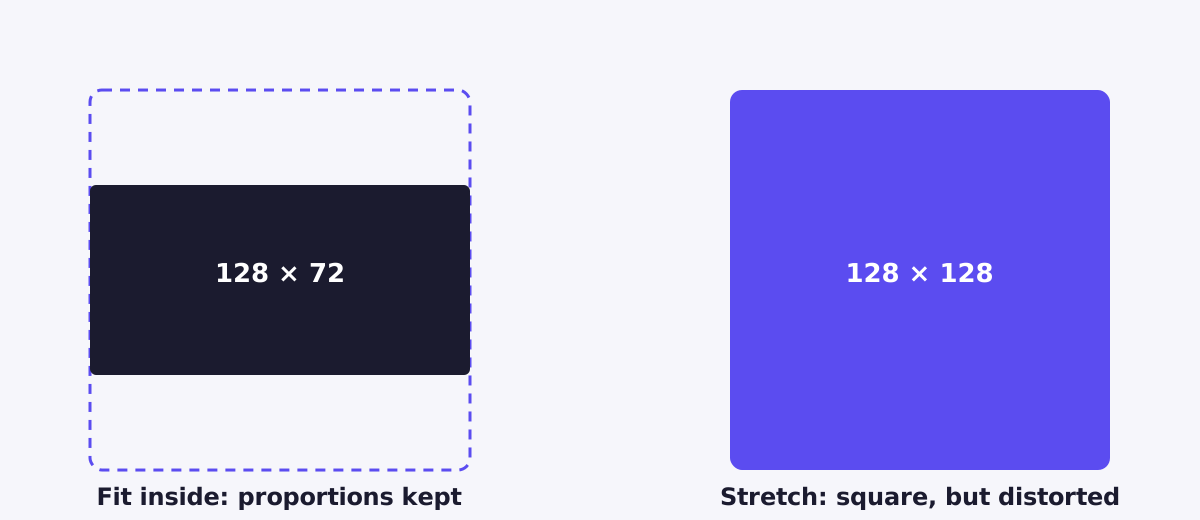
Square presets meet rectangular GIFs constantly, and something has to give. The resizer offers two answers. "Fit inside" scales the GIF until its longest edge hits the target, so a 16:9 clip fitted inside a 128×128 emoji box comes out 128×72 — proportions kept, empty space left over, and Discord accepts and renders it with space above and below. "Stretch" forces the GIF to the exact square, and everyone in frame gets slightly wider. Fit is the honest default; stretch is for when a platform demands exact dimensions and you accept the distortion.
If you want a genuine square with no distortion and no empty space, neither option gives it to you — that is a cropping job, not a resizing job. Crop to a square first with the GIF cropper, then come back and resize. The order matters: crop first, resize second, because cropping after resizing throws away pixels you already paid to scale.
Can you make a GIF bigger without losing quality?
No, and any tool promising otherwise is selling you something. To upscale a GIF, software has to invent pixels that were never recorded, guessing each new one from its neighbours. You get a bigger GIF with the same amount of real detail, spread thinner. The picture gets softer, not better.
GIF makes this worse than other formats. Every frame is limited to a 256-colour palette, so the smooth gradients an upscaler produces get banded into hard steps. Enlarge a GIF by 300% and you can usually count the colour bands on a face. That is why the resizer shows a warning the moment your target numbers cross the source dimensions: it will still do the resize — sometimes a preset genuinely needs a tiny GIF nudged up, and you know your footage better than any tool does — but the warning is there so nobody is surprised by the result.
Treat "enhance GIF" as marketing language rather than a feature. No upscaler adds information that was lost when the GIF was made. If sharpness matters, go back to the source: re-export the GIF from the original video at the larger size, and you get real detail instead of an educated guess. There is one case where enlarging a GIF is fine: pixel art and other hard-edged graphics. Those have no gradients to band and no detail to fake, so scaling them up mostly just makes the existing squares bigger. For anything filmed, treat upscaling as a last resort rather than a fix.
Resize vs compress vs crop
Three different jobs, three different tools, and picking the wrong one is the usual reason a GIF still does not work after a round of edits. The rule of thumb is simple: if a rule quotes a pixel number, resize; if it quotes KB or MB, compress.
Resizing changes the dimensions
Resizing changes how many pixels wide and tall the GIF is. A 640×360 clip becomes 320×180, the whole picture is still there, and every frame scales together. Fewer pixels usually means fewer bytes too, but the dimensions are the thing you are choosing.
Compressing shrinks the file
Compressing keeps the dimensions exactly as they are and reduces the file size instead, by trimming the colour palette, dropping duplicate frames, and applying lossy encoding. Reach for the GIF compressor when a platform rejects your file for weight rather than width — including when a resized GIF is still over a KB limit.
Cropping cuts part of the frame away
Cropping throws away the parts of the frame you do not want — browser chrome around a screen recording, dead space at the edges, or everything outside a square. What remains keeps its original scale. Use the GIF cropper when the framing is wrong rather than the size. And if the animation is too long rather than too big, trimming — cutting frames from the start or end — is yet another job again, covered in the guide to making a GIF smaller.
GIF sizes for the platforms people actually use
Here are the dimensions each platform expects, taken from ZipGIF's resizer presets — which in turn use the platforms' own published figures. A byte limit is listed only where the platform documents one publicly; everything else is dimensions only, on purpose. Guessing at a limit and being wrong wastes more of your time than leaving the cell blank.
| Platform | Dimensions | Documented limit |
|---|---|---|
| Discord emoji | 128×128 (fit inside) | 256 KB (Discord developer docs) |
| Discord sticker | 320×320 | 512 KB (Discord developer docs) |
| Discord avatar | 128×128 | Dimensions only |
| Twitch emote | 112×112 (scales to 56 and 28) | Dimensions only in this table — also check Twitch's current emote file-size and frame limits before uploading an animated emote. |
| Slack emoji | 128×128 | Dimensions only |
| Telegram sticker | 512×512 | Dimensions only |
| 600px max width | Dimensions only | |
| HD web | 1280px max width | Dimensions only |
Two platform notes are worth knowing before you upload. Twitch uses three emote sizes — 112×112, 56×56, and 28×28, per its official emote guidelines — but you upload the largest one and Twitch generates the two smaller versions itself, so the only file you need to prepare is a square 112×112 GIF. Design for the small end anyway: an emote that reads beautifully at 112px can turn into a few grey pixels at 28px in a fast chat, so big shapes, strong contrast, and no thin outlines. And on Discord, remember that hitting the dimensions is only half the upload check: a 128×128 emoji still has to come in under 256 KB, and a 320×320 sticker under 512 KB. If the resized file is still over the limit, dimensions are no longer the problem — compress it.
Email is a convention rather than a rule: 600px is the width most clients render without horizontal scrolling. HD web at 1280px max width is the same kind of judgement call — a GIF wider than most screens is rarely worth its weight. Neither is a platform rule, and neither should be treated as one.
Getting a clean result
A few habits separate a resize that looks native from one that looks processed. First, resize in round steps where you can: scaling to 50% or 25% maps neatly onto the source pixels and tends to look cleaner than an arbitrary 63%. It is not a rule, and nothing breaks if you ignore it, but side by side you can usually tell. Second, judge the result at 100% zoom, at the size people will actually see it — a GIF that looks crisp in a small preview can show its softness once it fills a chat window. Third, resize to the display size before compressing, not after: compressing first and then resizing means the compressor spent its effort on pixels you then throw away.
Finally, remember what resizing does not do. It does not change the timing, it does not remove frames, and it does not fix a GIF that was blurry to begin with — scaling a soft source down can hide some softness, but it cannot restore detail that was never there. If the source is the problem, the fix is a better source, not a bigger resize. The companion guide to why a GIF gets so big walks through the other causes — frame count, colours, and noise — when dimensions are not the culprit.
Troubleshooting
The GIF looks stretched or squashed
The aspect lock was off, or a square preset was applied with stretch instead of fit. Redo the resize with the lock on, or choose fit for square presets. If you actually need a true square with no distortion and no empty space, crop to a square first and then resize.
The GIF is the right size but still rejected
Check whether the rejection is about pixels or bytes. Discord, for example, checks both: an emoji must be 128×128 and under 256 KB. If the dimensions are right, the file is still too heavy, and that is a compression job. The same applies anywhere a KB or MB number is quoted.
The resized GIF looks blurry
If you enlarged it, that is upscaling, and softness is the expected result — re-export from the source at the larger size if you can. If you shrank it, check the result at the size it will actually be displayed: heavy downscaling of fine text or thin lines can shimmer, and a gentler step (75% instead of 25%) sometimes reads better.
Discord says it cannot resize the GIF
Discord's built-in resizer works on still images and quietly gives up on animated GIFs, so instead of a smaller emoji you get an error. Resize the GIF before you open the upload dialog — 128×128 for an emoji, 320×320 for a sticker — and the upload check passes on dimensions.
FAQ
Will resizing a GIF make the file smaller too?
Usually, yes, because fewer pixels means less picture to store — halving both sides leaves a quarter of the pixel area. But the file does not shrink by exactly that amount: headers, colour palettes, and per-frame overhead do not scale with the picture. If a platform rejects your file for its weight in KB or MB rather than its width in pixels, resizing alone may not be enough, and that is a job for the GIF compressor.
Does resizing change how fast a GIF plays?
No. Resizing changes the pixels in each frame; it does not touch the delay values that set the timing. The resized GIF plays at exactly the same speed and loops exactly as before. If the animation feels too fast or too slow, that is a speed problem, not a size problem.
Why does my resized GIF look stretched?
Almost always because the aspect lock was off, or a square preset was applied with stretch instead of fit. With the lock off, width and height are set independently, so a wide GIF forced into a square gets squashed. Redo the resize with the aspect lock on, or use the fit option for square presets, and the proportions come back.
Can I make a small GIF bigger without losing quality?
Not really. Enlarging a GIF means inventing pixels that were never recorded, so the picture gets bigger and softer at the same time. ZipGIF's resizer shows a warning when your target is larger than the source, and it will still do the resize if you ask — sometimes a preset genuinely needs a small GIF nudged up. If sharpness matters, re-export from the original video or image at the larger size instead.
Why is my GIF still too big after resizing it?
Because dimensions and file weight are different problems. If the GIF is long, has hundreds of frames, or is full of photographic noise, it can stay heavy even at small dimensions. After resizing to the size you actually need, run the GIF compressor, which works on the file weight directly.
What is the difference between resizing and cropping a GIF?
Resizing scales the whole picture: everything stays in frame, just at fewer (or more) pixels. Cropping cuts part of the frame away: the remaining area keeps its original scale, but the edges are gone. Resize when the picture is right but the size is wrong; crop when the framing is wrong.
Sources
- Discord developer documentation — emoji and sticker limits
- Twitch emote guidelines — 28, 56, and 112px emote sizes
Platform rules change. The Discord and Twitch figures above were taken from the linked pages and from ZipGIF's resizer presets, which use the same published figures; if an upload fails, check the platform's current page before assuming the numbers above still hold. No file-size reduction percentage is quoted in this article, because the saving from a resize depends on the individual GIF — headers, palettes, and per-frame overhead do not shrink with the picture.