How to Crop a GIF
By Shafiullah Tareen, creator of ZipGIF · Published
Cropping a GIF means cutting the same rectangle out of every frame: the picture gets smaller, the animation stays exactly as it was. The two things that go wrong are choosing the wrong job — crop when you meant resize or trim — and using a tool that crops one frame instead of all of them. Get those two right and the rest is framing.
Crop, resize, trim: three different jobs
People say “cut a GIF” for three completely different operations, and picking the wrong one is the most common reason a cropped GIF disappoints. They differ in what changes: cropping changes space, trimming changes time, and resizing changes scale. A GIF is a stack of frames plus a colour palette and a set of delays (GIF89a specification), so each operation attacks a different part of that stack.
| What you want | What it is called | What changes | What stays the same |
|---|---|---|---|
| Remove borders or reframe the subject | Crop | Width and height shrink; the canvas gets smaller | Every frame, the timing, and the loop |
| Make the GIF shorter in time | Trim | Frame count and duration drop | Dimensions and the kept frames |
| Make the whole picture smaller, same content | Resize | Every frame is scaled down | Nothing is cut away; framing is unchanged |
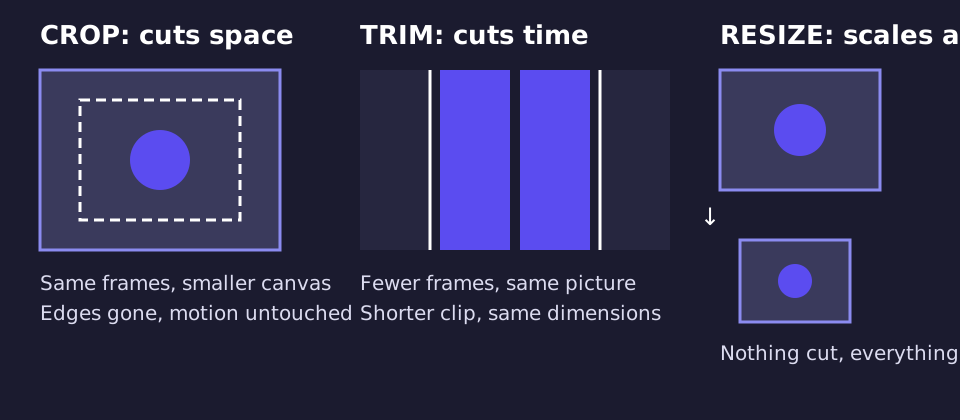
A concrete example: a screen recording with browser tabs across the top and a taskbar at the bottom. Cropping removes the tabs and taskbar from every frame and leaves the demo itself untouched — that is a crop. Cutting the first five seconds, where you were still finding the right window, is a trim: use the GIF trimmer. Shrinking the whole recording so it loads faster on a web page, tabs and all, is a resize: use the GIF resizer. And if the cropped GIF is still too heavy to upload, that is a compression job for the GIF compressor — cropping alone was never the whole answer. The companion guide on making a GIF smaller walks through how to choose between all five shrinking methods.
How to crop a GIF with ZipGIF
Cropping here takes three moves, and everything happens in your browser — the file never leaves your device, there is no signup, no watermark, and no export limit. The cropper accepts GIFs up to 200 MB each, and you can queue up to 20 files and apply one crop region across the whole batch.
1. Add your GIF
Drop a GIF onto the GIF cropper, paste one from your clipboard, or paste a direct image URL. The crop box sits over a live, playing preview rather than a still thumbnail, and that matters more than it sounds: the subject moves, and a crop that looks perfect on frame 1 can slice the punchline off frame 40. Watch at least one full loop before you commit.
2. Set the crop area
Drag the crop box and its handles over the part you want to keep, or pick an aspect ratio preset to lock the box to a shape (the presets are covered in the next section but one). If the GIF has plain borders — letterbox bars, a uniform margin — the auto-trim button snaps the box to the content: it scans every frame for the bounding box of pixels that actually carry content and trims the rest. Note that auto-trim only finds plain borders; it will not remove a bookmark bar or a notification that slid in mid-recording, because those are content as far as the scan is concerned. For those, drag the box yourself.
3. Download the cropped GIF
Press Crop GIF, check the before-and-after, then download the file — or grab a .zip if you cropped a batch. The downloaded file is named after the crop, for example clip-cropped-300x200.gif, so the result is easy to tell apart from the original. If the cropped GIF still needs to be lighter for an upload limit, run it through the GIF compressor afterwards: crop first for framing, then compress for weight.
What happens to the frames, the loop, and the timing
A proper GIF crop cuts the identical rectangle out of every frame and rewrites the canvas size, so the picture gets smaller but the timeline does not change: same number of frames, same delays, same loop count, same transparency. That is the whole promise, and it is also where cheap tools break it.
The breakage has a specific cause. Most GIFs in the wild are frame-optimized: each frame stores only the rectangle that changed since the last one, positioned with an offset, with transparency standing in for the pixels that did not move. Crop those stored rectangles blindly and you are cutting different regions out of different frames, which is how you end up with ghost trails and pixels that smear across the loop. The correct sequence — the one ZipGIF's cropper follows — is to expand every frame back to a full picture first (Gifsicle calls this --unoptimize), apply the crop to all of them equally, and then put the inter-frame optimization back afterwards (-O3) so the output does not balloon (Gifsicle manual). Delays, loop count, and transparency are carried through by Gifsicle untouched.
This is also why the most common cropping mistake is not really a crop at all: opening a GIF in a still-image editor and cropping it there. A still editor sees one image — usually the first frame — and saves one image back. The animation is gone, and no setting will bring it back. If a tool cannot show you the animation playing inside the crop box, it is not cropping your GIF; it is cropping a screenshot of it.
Aspect ratios and shapes: which preset for which job
The cropper's aspect ratio presets lock the crop box to a fixed shape while you drag it. Each one exists for a real job, and the list below is exactly what the tool offers — no more, no less:
| Preset | Shape | Use it for |
|---|---|---|
| Freeform | Any rectangle | Banner crops, odd sizes, and any job where no fixed ratio fits — including vertical crops, since there is no 9:16 preset |
| Square 1:1 | Square | Profile pictures, avatars, and feed posts |
| Circle Preview | Square, shown round | Previewing how an avatar will look behind a platform's round mask — the downloaded GIF itself stays rectangular, because a GIF file is always a rectangle |
| Discord Emoji | Centred square, up to 128×128 | Discord emotes: the preset centres the square for you, then check the 256 KB emoji limit separately (see below) |
| Profile Picture | Centred square | Avatars where you want the subject centred without dragging the box yourself |
| 16:9 | Widescreen | Screen recordings and video-style clips |
| 4:3 | Classic TV shape | Older captures and photo-style framing |
Two shape facts save people the most confusion. First, nearly every platform crops an avatar to a square before it displays it, and if you upload a widescreen GIF the platform's auto-crop decides what stays — usually dead centre, which is rarely where a face is. Doing the 1:1 crop yourself keeps that decision with you. Second, there is no such thing as a round GIF file: a “circle GIF” is either a square GIF sitting behind a platform's round mask, or a square GIF with a transparent background in the corners. Crop to 1:1 and the round version takes care of itself on any site that displays avatars as circles.
On platform sizes, one honest warning: platforms change their numbers, and this guide will not invent them. The one figure stated here is Discord's, because it is both in the tool's own preset and in Discord's documentation: Discord's emoji guidance is 256 KB at 128×128 (Discord custom emoji guide), while its free attachment limit is a separate, larger number (Discord File Attachments FAQ). An emoji limit is not an attachment limit — confirm which one applies to your upload before you crop, and check the platform's current page if an upload fails. For other platforms, crop to the ratio (usually 1:1 for avatars) and let the platform's own size page, not this guide, supply the pixel numbers.
How cropping affects file size: the maths, not a promise
Cropping shrinks a file for a simple reason: a GIF's size is roughly pixels per frame × number of frames × how hard each frame is to compress, and cropping cuts the first factor. The maths of the pixel part is exact. An 800×600 frame holds 480,000 pixels; crop it to 400×300 and it holds 120,000 — a quarter of the pixels, because pixel count follows area, not width. Halve both dimensions and you quarter the pixels; crop away half the area and you halve them.
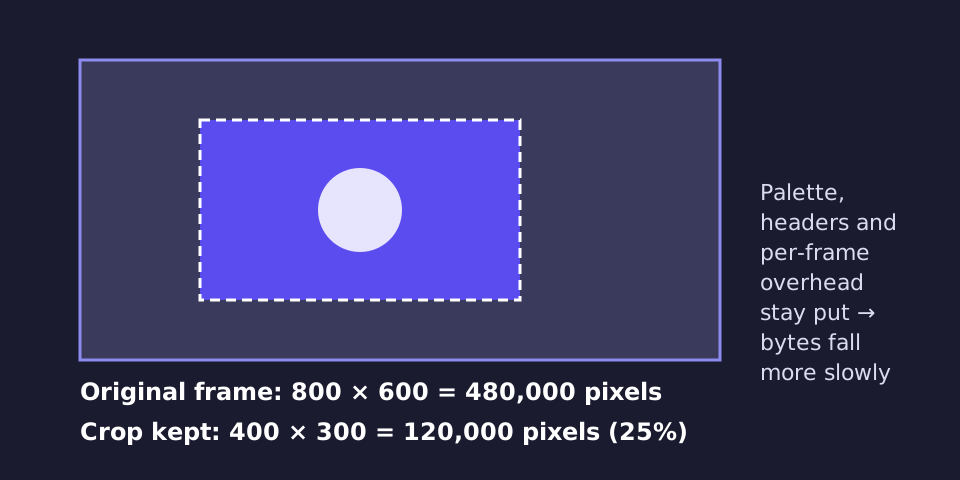
But bytes do not follow pixels one-for-one, because part of every GIF is overhead that does not shrink when the canvas does: the colour palette, the headers, and the per-frame bookkeeping. That is why a crop that removes 14% of the pixels might only save 8% of the bytes, and why small crops save proportionally less than large ones. What you crop away matters as much as how much: busy, detailed regions cost far more bytes than empty ones, so cutting a noisy background saves more than cutting the same area of flat colour — and cutting empty letterbox bars saves the least, because those pixels were already nearly free to store.
ZipGIF's own 20-GIF crop test, published on the cropper page, measured exactly this pattern: across the 20 files, the median crop removed 36% of the pixels and 22% of the bytes. Tight square avatar crops did best, giving back 44–47% for 44% of the pixels removed, because the discarded region was busy background. Letterbox crops paid the least, at 33% of the pixels for only 11–16% of the file. Those are measurements of those files, not a promise for yours — the only number worth trusting for your file is the one the tool shows you after your own crop. And if the cropped file is still too big, the remaining levers are the ones in the smaller-GIF guide: trim, resize, fewer frames, or compression, in that order of visible cost.
Seven mistakes people make when cropping a GIF
1. Cropping a still instead of the animation
A still-image editor keeps one frame and discards the rest. If the result does not move, the tool was wrong, not the GIF. Crop in a tool that plays the animation inside the crop box.
2. Framing on the first frame only
Subjects drift, cameras pan, and reactions move across the frame. A crop that fits frame 1 can decapitate frame 40. Watch a full loop in the preview before downloading, and frame for the whole movement, not the opening pose.
3. Letting the platform's auto-crop decide
Upload a widescreen GIF as an avatar and the platform crops it for you, usually from the centre. If the subject is off-centre — and interesting subjects usually are — crop to 1:1 yourself first.
4. Cropping when the problem is time or scale
A GIF that is too long needs trimming, not cropping; a GIF that is shown smaller than its stored size needs resizing, not cropping. Cropping either one throws away picture without fixing the actual problem.
5. Expecting bytes to fall as fast as pixels
Palette, headers, and per-frame overhead stay put, so a 30% pixel cut is not a 30% byte cut. Judge the crop by the tool's reported output size, not by the area you removed — and compress afterwards if the target is still out of reach.
6. Cropping smaller than the display size
A GIF cropped to 200 pixels wide and then displayed at 400 will be upscaled, and upscaling softens everything. Crop to the size the GIF will actually be shown at, never below it. If you need both a small file and a large display, you need compression, not a smaller crop.
7. Cropping empty bars and expecting a big saving
Letterbox bars look wasteful, but flat black pixels compress to almost nothing, so removing them saves less than the area suggests. Crop the bars anyway for framing — just do not be surprised when the file barely moves, and reach for trim or compression for the actual saving.
The routine that avoids all seven: decide which job it is (crop, trim, or resize), frame the crop over the full playing loop, crop to the display size, check the reported output size, and compress only if the target is still out of reach. The GIF cropper does the framing and the arithmetic; the judgement about what to keep is still yours, and it is the only part no tool can do for you.
FAQ
Does cropping a GIF keep the animation?
It should, if the tool crops every frame to the same rectangle. ZipGIF's cropper does: it expands each frame back to a full picture, applies one identical crop to all of them, and re-applies optimization afterwards, so frame delays, loop count, and transparency come through untouched. A tool that crops only the first frame, or crops each frame's stored rectangle independently, is what produces a frozen still or a smeared animation.
How do I crop a GIF to a square?
Pick the 1:1 preset and drag the square box over the part you want to keep. Square is the shape profile pictures, avatars, and Discord emotes want, so cropping to 1:1 yourself means you decide what stays in frame instead of letting a platform's auto-crop guess for you — and it usually guesses dead centre.
How do I crop a GIF for a Discord emoji?
Use the cropper's Discord Emoji preset, which takes a centred square crop up to 128×128 pixels. Cropping only fixes the shape, not the weight: Discord's emoji guidance is 256 KB at 128×128, so if the cropped file is still over that, run it through the GIF compressor afterwards. Shape first, size second.
Will cropping my GIF make the file smaller?
Almost always, but not in proportion to the pixels you remove. Fewer pixels per frame means fewer bytes, but the palette, headers, and per-frame overhead stay put. ZipGIF's own 20-GIF crop test found a median of 36% of pixels removed and 22% of bytes saved; tight square avatar crops did best at 44–47% smaller, while cutting empty letterbox bars saved the least. Treat those as measurements of those files, not a promise for yours.
Can I crop a GIF on my phone without an app?
Yes. The ZipGIF cropper runs in the browser, so Windows, macOS, Linux, Android, and iOS all work the same way: open the page, drop the file, drag the crop box, download. Nothing installs and nothing is uploaded — the work happens on your own device through a WebAssembly build of Gifsicle.
Why does my cropped GIF look smeared, with ghost trails?
That is the signature of a naive crop on a frame-optimized GIF. Most GIFs store each frame as only the rectangle that changed since the last one, positioned with an offset. Crop those stored rectangles blindly and you cut different regions out of different frames, so pixels smear across the loop. The fix is to expand every frame to a full picture before cropping — which is what ZipGIF's cropper does — so if another tool gives you ghost trails, that step is what it skipped.
Can I crop just one part of the animation in time, like the middle three seconds?
No — cropping is spatial, not temporal. A crop applies to every frame of the whole animation. To keep only part of the timeline, use the GIF trimmer, which drops frames from the start or end and leaves the picture untouched. If you need both — a tighter frame and a shorter clip — crop first, then trim, and check the result after each step.
Sources
- W3C: Graphics Interchange Format, Version 89a
- Gifsicle manual: optimization, cropping, and lossy options
- Discord: File Attachments FAQ
- Discord: Beginner's guide to custom emojis
Platform rules change. The Discord figures were taken from the linked pages in October 2026; if an upload fails, check the platform's current page before assuming the numbers above still hold. The 20-GIF crop figures come from ZipGIF's own crop test published on the cropper page, and the pixel maths in the file-size section is arithmetic, not a measurement — the byte savings on any particular GIF can only be read from that GIF's own result.